


Blog
Computer Buying Guide: Buy for What You Do

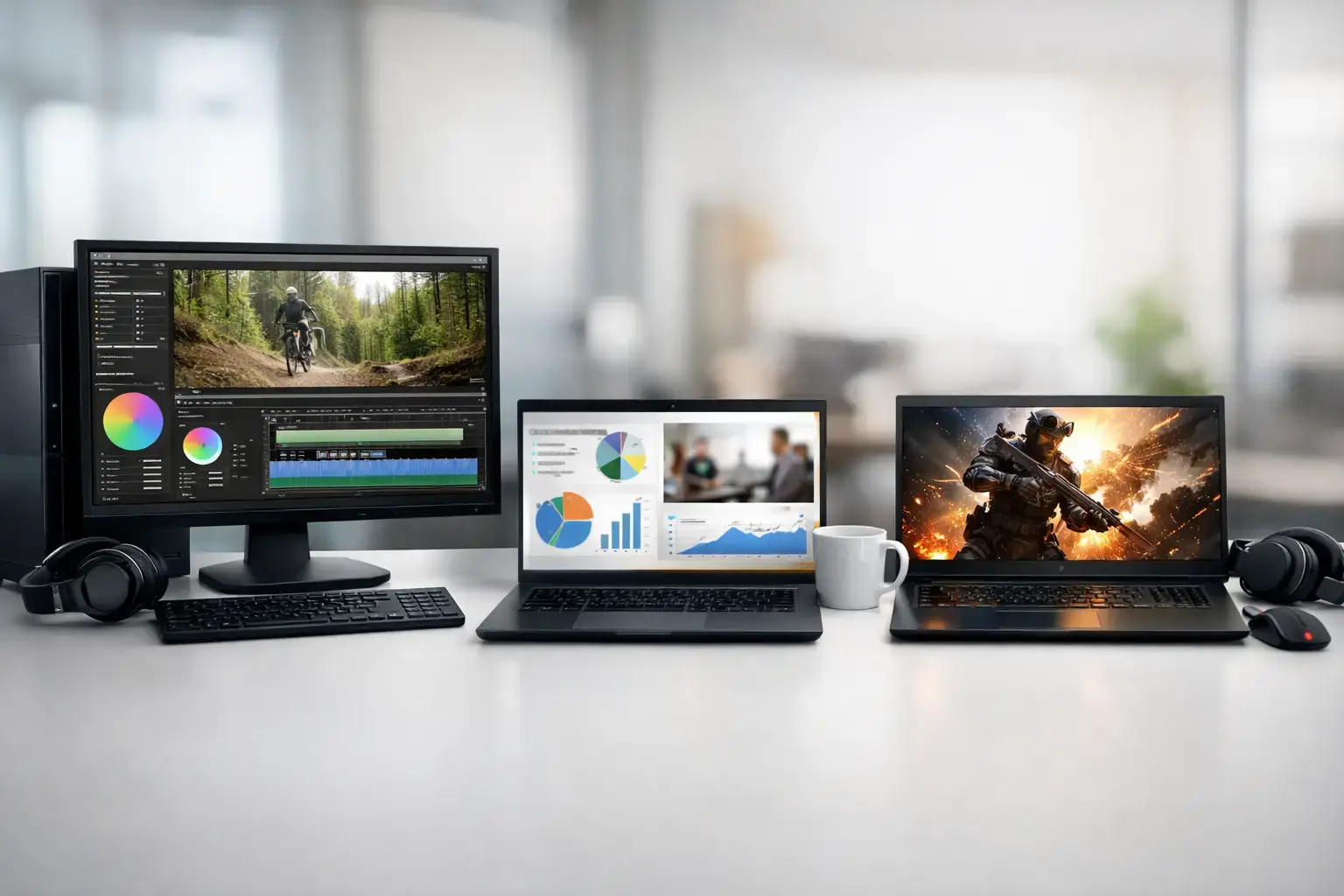
A computer that looks impressive on a spec sheet can still be the wrong machine for your desk. A high-end graphics card will not make spreadsheets faster in a meaningful way, while a budget office PC can struggle badly with modern games or 4K video editing. This computer buying guide starts where the best purchase decisions do: with the work, games, and software you actually plan to run.
The goal is not to buy the most expensive PC. It is to put your budget into the components that affect your experience most, then leave room for sensible upgrades later. A properly matched system feels fast, stable, and responsive from the first boot.
Start With Your Main Use Case
Most buyers have more than one use for a computer, but one workload usually sets the performance target. A student who writes papers and watches videos has very different requirements from a player chasing high-FPS esports performance. A creator editing long videos needs a different balance again.
For home, school, and office work, prioritize a modern processor, enough memory for browser tabs and multitasking, and a fast SSD. Graphics are usually less important unless you use demanding visual software. A Ryzen 5 or Intel Core i5 system with 16GB of RAM and NVMe storage is a strong starting point for people who want a PC that stays responsive for years.
For gaming, the graphics card and monitor target should lead the decision. Fortnite, Roblox, Minecraft, Terraria, and similar games can run well on entry-level gaming hardware, but higher settings, ray tracing, and demanding new releases require more GPU power. Competitive players may value very high frame rates at 1080p, while single-player gamers may prefer stronger visual settings at 1440p or 4K.
For content creation, professional multitasking, coding, 3D work, and video editing, processor cores, memory capacity, fast storage, and GPU acceleration all matter. The right mix depends on the applications. Premiere Pro, DaVinci Resolve, Blender, Adobe Creative Cloud, CAD tools, and AI-assisted workflows can benefit from a capable NVIDIA RTX graphics card, but a weak CPU or limited RAM can still slow the whole system down.
Before comparing models, answer four practical questions: what software will you use, what monitor resolution do you have or plan to buy, how long should the PC remain capable, and which upgrade might you add first? Those answers prevent overspending in one area while missing a component that matters more.
Computer Buying Guide: Choose the Core Parts
A desktop PC is only as balanced as its components. Product names can be confusing, but each part has a clear job.
CPU: Everyday Speed and Multi-Core Power
The CPU handles general system tasks, game logic, productivity software, and much of the processing behind creative applications. Intel Core i3 and AMD Ryzen 3 processors suit basic home and office machines. Intel Core i5 and AMD Ryzen 5 chips are often the sweet spot for gaming and serious everyday use. Core i7, Core i9, Ryzen 7, and Ryzen 9 processors make more sense for heavy rendering, large project files, streaming, virtual machines, and demanding multi-core workloads.
More expensive does not automatically mean better value. If your priority is gaming at 1440p or 4K, putting too much budget into the CPU while settling for a weaker graphics card can reduce real-world performance. On the other hand, a video editor exporting long projects will often benefit from stepping up to a higher-core processor.
GPU: The Component Gamers Feel Most
For gaming PCs, the GPU has the biggest effect on frame rates, image quality, and resolution. It also supports GPU-accelerated creative tasks. Entry-level graphics can handle lighter games and esports titles at 1080p. Midrange cards are a strong fit for high-refresh 1080p or capable 1440p gaming. Premium RTX-powered systems are built for high-detail 1440p, 4K gaming, ray tracing, and demanding creator workloads.
Do not buy a graphics card in isolation. Match it to the display. A powerful GPU connected to a basic 60Hz 1080p monitor may not deliver the experience you paid for. Likewise, a high-refresh 1440p monitor needs enough graphics performance to keep games running smoothly. If visual fidelity matters, favor a stronger GPU. If competitive response matters, target frame rates that suit your monitor’s refresh rate.
RAM: Capacity First, Then Speed
Memory affects how comfortably your system handles multiple programs at once. For a new Windows PC, 16GB is the practical baseline for gaming, general work, and everyday multitasking. It gives modern games, browser tabs, voice chat, and background applications room to run without constant slowdowns.
Choose 32GB if you edit video, work with large files, use design applications, run virtual machines, or simply want more breathing room over the next few years. Higher capacities can be useful for specialized professional work, but they are not necessary for every buyer. Quality custom systems should also use matched memory kits and properly configured memory profiles, not just install the modules and hope for the best.
Storage: SSD Speed Changes Daily Use
A fast NVMe SSD makes a PC feel ready. Windows loads quickly, applications open faster, games launch sooner, and file transfers are less frustrating. A 1TB SSD is a sensible starting point for many users because modern games and creative files consume space quickly.
A 500GB drive can work for a budget build, especially when paired with a plan to add storage later. For game libraries, video footage, and large project archives, 2TB or more may be worth the upfront cost. It is often smarter to choose a system with an available M.2 slot or SATA connections than to pay for a storage configuration that leaves no easy expansion path.
Do Not Ignore the Parts Around the Parts
The CPU and GPU get the attention, but the supporting hardware determines whether a PC stays reliable under load. A quality motherboard provides the ports, networking, expansion options, and BIOS support your system needs. A reputable power supply protects expensive components and gives you headroom for future graphics-card upgrades. Effective cooling keeps clocks stable and fan noise under control during gaming, rendering, and long work sessions.
Case airflow matters too. A compact case can look clean, but it may limit cooling, storage expansion, or GPU choices. There is nothing wrong with a smaller build when it suits your space, but check the trade-offs before you commit. A fully upgradeable desktop should have room to grow without turning a simple future upgrade into a full rebuild.
This is one reason component-level specifications matter. Vague labels such as “gaming PC” or “powerful desktop” tell you very little. Look for the exact processor model, graphics card, memory capacity and speed, storage type, motherboard chipset where relevant, power supply rating, and operating system. Transparent specs make it easier to compare systems fairly.
Set a Budget That Protects Performance
A good budget is not only a number for the tower. Include the monitor, keyboard, mouse, headset, software, and any needed accessories. For gaming, the display is especially important because it determines what you can see and feel from the hardware you buy.
If the budget is tight, avoid cutting corners on the power supply, SSD, or memory just to claim a better CPU or GPU badge. A balanced entry-level system with 16GB of RAM, NVMe storage, quality cooling, and a sensible graphics card is usually a better long-term purchase than a poorly matched build with one headline component.
It also pays to think about timing. If you need a PC now, buy the best balanced configuration for your workload now. Waiting forever for the next generation can mean missing months of work, play, or creative output. If you expect to upgrade later, choose a platform, case, and power supply that make that path realistic.
Prebuilt, Custom, or Laptop?
A mass-market prebuilt can be convenient, but some models use limited power supplies, proprietary motherboards, basic cooling, or cases that make upgrades awkward. They may be suitable for straightforward office use, but buyers should inspect the full specification rather than rely on the headline CPU name.
A custom-built desktop gives you more control. You can prioritize high-FPS esports, multi-core power, quiet operation, extra storage, or workstation-grade reliability without paying for parts you do not need. Expert assembly also matters: compatibility checks, BIOS updates, memory-profile configuration, cable management, and full testing help ensure the system arrives ready to use.
Laptops are the better choice when portability is non-negotiable. They are ideal for classes, travel, and mobile work, but they usually offer less upgrade flexibility and can run louder under sustained load than an equivalent desktop. If the computer will live in one place, a desktop generally delivers more performance and easier servicing for the money.
A well-chosen PC should not make you second-guess every game install, project export, or busy workday. Buy for the tasks that matter most, choose quality components around them, and leave yourself a sensible path to upgrade when your needs grow.

