


Blog
Blender Workstation Hardware Guide for Creators

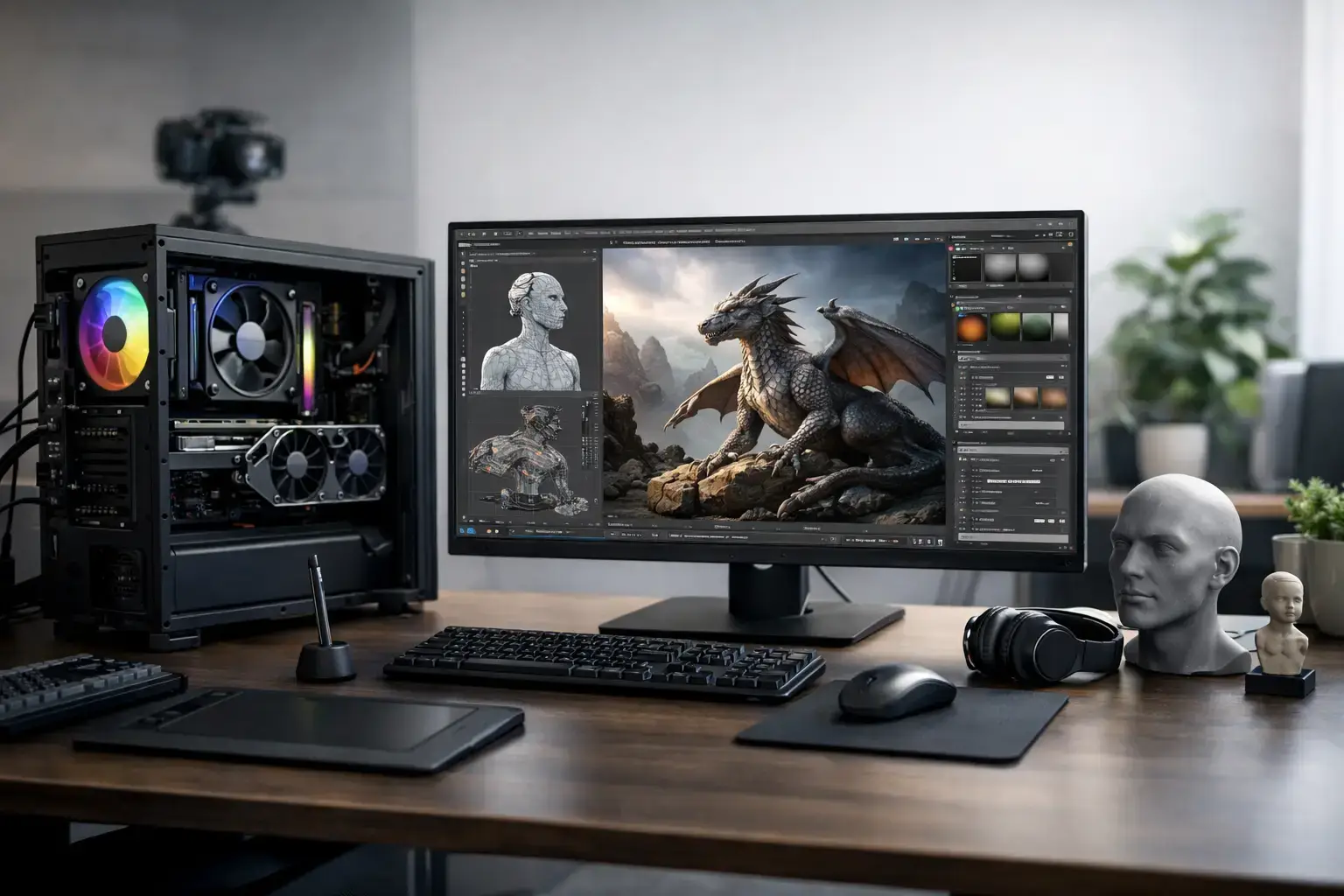
A Blender scene can feel fast right up until you add high-resolution textures, particle effects, simulation caches, and a final render. Then the wrong component choice becomes obvious. This Blender workstation hardware guide focuses on the parts that directly affect viewport responsiveness, render times, stability, and how confidently you can take on larger projects.
Blender does not place every workload on one component. Modeling a product asset, sculpting a character, baking a fluid simulation, and rendering an animation stress a PC in different ways. The best workstation is not simply the one with the most expensive graphics card. It is a balanced, compatibility-checked system built around the work you actually do.
Start with your Blender workload
Before choosing hardware, identify where your time goes. A freelance artist producing still renders in Cycles needs a different priority than a motion designer working with simulations, or a game artist spending most of the day in Eevee and Unreal Engine.
For light modeling, learning Blender, and smaller Eevee projects, a modern six-core CPU, a capable RTX graphics card, 32GB of memory, and a fast NVMe SSD make an excellent starting point. This is the sensible performance tier for creators who want a responsive machine without paying for capacity they will not use yet.
For paid client work, large scenes, 4K textures, and frequent Cycles rendering, step up to an eight-core or higher processor, an RTX card with more VRAM, 64GB of RAM, and additional fast storage. Animation work can justify even more CPU cores and memory because simulations, multitasking, and long render queues add up quickly.
CPU: fast cores or more cores?
The processor still matters in Blender, even when you plan to render on the GPU. CPU speed affects general interface performance, modeling tasks, modifier-heavy scenes, file imports, physics calculations, baking, encoding, and applications running alongside Blender.
A high-clocked AMD Ryzen 7 or Intel Core i7 is a strong all-around choice for many creators. These chips combine fast single-core performance for active viewport work with enough multi-core power for rendering, simulation tasks, and demanding multitasking. They are often the sweet spot for a workstation that needs to feel quick all day, not just perform well in benchmarks.
Ryzen 9 and Intel Core i9 processors make sense when Blender is a daily production tool. More cores help with CPU rendering, heavy simulation workloads, background exports, and workflows that include Premiere Pro, After Effects, DaVinci Resolve, CAD software, or several creative applications open at once.
There is a trade-off. A top-tier CPU will not compensate for an underpowered GPU in a Cycles GPU-rendering workflow. If your main goal is reducing render time in Cycles, it is usually smarter to protect the graphics-card budget first, then choose a CPU that keeps the system balanced.
GPU: the biggest Cycles rendering decision
For most Blender artists, the graphics card is the component that delivers the clearest improvement to Cycles render performance. NVIDIA RTX GPUs are a popular workstation choice because Blender can use CUDA and OptiX acceleration, with OptiX commonly offering excellent results on supported RTX hardware.
VRAM deserves as much attention as raw GPU speed. It holds scene data such as geometry, textures, and render assets. If a scene exceeds available VRAM, rendering can slow down, fail to fit on the GPU, or force you to simplify assets and textures. That is frustrating when you are close to a deadline.
An RTX 4060 Ti 16GB can be a practical entry point for creators who need more memory than lower-capacity cards provide. An RTX 4070 Super suits many serious artists working on product visualization, motion graphics, and moderately complex scenes. For demanding production scenes, high-resolution assets, and faster turnaround, an RTX 4080 Super or a higher-VRAM professional-focused option can be worth the investment.
Do not buy by GPU name alone. Compare VRAM, cooling design, power requirements, and the applications you use beyond Blender. A card that is excellent for high-FPS esports may have less VRAM than a creator needs. Conversely, paying for more VRAM than your scene complexity requires can take budget away from RAM, storage, or a better CPU.
RAM: give complex scenes room to breathe
Memory capacity determines how comfortably your workstation handles large files, texture-heavy scenes, simulation caches, and multiple creative apps. When RAM fills up, the PC starts relying more heavily on storage as temporary memory. Even with a fast SSD, that can turn a smooth session into a stuttering one.
32GB is the realistic baseline for Blender workstation use. It is enough for learning, asset creation, smaller scenes, and many freelance projects. 64GB is the stronger recommendation for professional work because it provides breathing room for high-resolution textures, compositing, editing, browser references, and background apps.
Move to 128GB if you regularly work with large simulations, high-poly sculpting, architectural visualization, complex animation projects, or very large datasets. It is not mandatory for every creator, but it can remove a real production bottleneck.
Use matched memory kits rather than mixing old and new modules where possible. Properly configured dual-channel RAM helps overall responsiveness, and memory profiles should be tested for stable operation. A workstation should finish an overnight render, not become a troubleshooting project because an aggressive memory setting is unstable.
Storage: separate speed from capacity
A single small SSD looks economical until Blender project folders, texture libraries, caches, and render outputs begin competing for space. Storage planning is about keeping active work fast while retaining enough capacity for completed projects and source files.
A 1TB NVMe SSD is a workable minimum for the operating system, Blender, current applications, and active projects. A 2TB NVMe drive is more comfortable for most creators and avoids constant file management. If your budget allows, use a second SSD for project files, simulation caches, media, and render output. Separating these workloads can keep the system feeling more responsive during active production.
Hard drives still have a place for economical archives and backups, but they should not be your primary working drive for large Blender projects. Keep active files on SSD storage, maintain a backup routine, and leave free space on your main drive. A nearly full SSD has less room for cache files and temporary data when you need it most.
Cooling, power, and the parts people overlook
Long renders are sustained workloads, not a quick gaming session. Good cooling keeps CPU and GPU clocks consistent, reduces fan noise, and supports component longevity. A quality air cooler is enough for many Ryzen 7 and Core i7 systems, while high-end Ryzen 9 or Core i9 builds may benefit from larger air cooling or a properly selected liquid cooler.
The power supply also matters. Choose a premium unit with sufficient headroom for the graphics card, processor, storage, and future upgrades. A cheap power supply is a false economy in a workstation expected to run intensive renders for hours. The case should also provide clear airflow, sensible cable routing, and space for upgrades.
Motherboards are less about chasing a premium badge and more about getting the features you need: enough M.2 slots, adequate USB connectivity, reliable networking, memory support, and expansion room. If you use external drives, card readers, drawing displays, and audio equipment, count your ports before ordering.
A balanced Blender workstation hardware guide by tier
A smart Blender build follows the workload, not a fixed parts list. For a capable entry workstation, prioritize a modern Ryzen 5 or Core i5, 32GB RAM, a 1TB NVMe SSD, and an RTX GPU with useful VRAM. This handles learning, modeling, Eevee, and smaller Cycles scenes far better than a generic office PC.
For a serious creator system, a Ryzen 7 or Core i7, 64GB RAM, 2TB of NVMe storage, and an RTX 4070 Super-class GPU offer excellent all-around performance. It is a strong platform for commercial design work, animation, video editing, and fast GPU rendering.
For high-end production, pair a Ryzen 9 or Core i9 with 64GB to 128GB of RAM, multiple NVMe drives, substantial cooling, and a high-performance RTX GPU selected for both speed and VRAM. This tier is for creators whose render time, simulation capacity, and ability to stay productive directly affect revenue.
One final rule helps more than any spec sheet: buy for the project you expect to be making 12 months from now, not only the file open on your screen today. A fully upgradeable workstation with the right power, cooling, memory capacity, and storage expansion gives your creative work room to grow.

