


Blog
Choosing a Workstation for 4K Video Editing

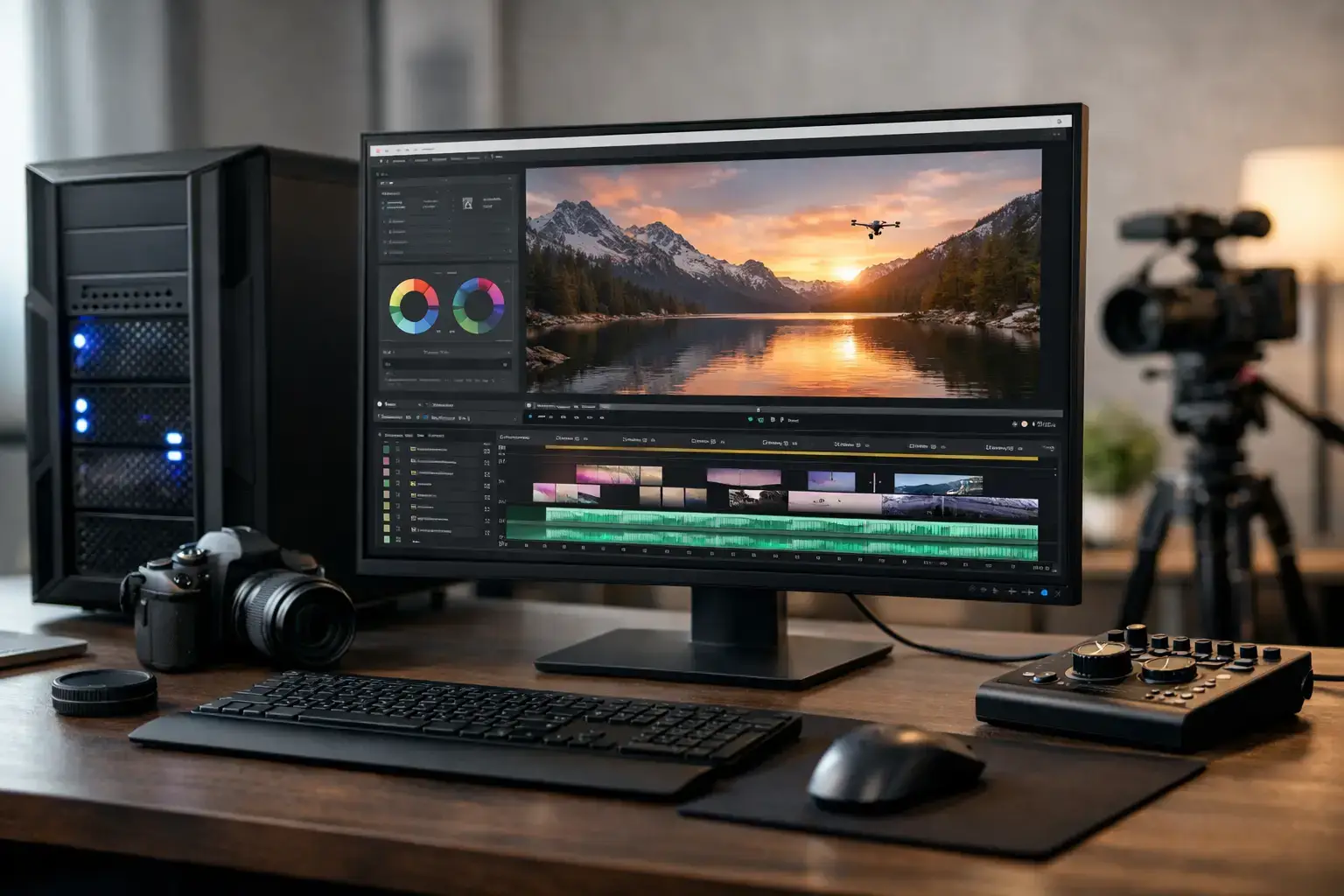
A dropped frame during playback is annoying. A system that takes all night to export a client project is expensive. The right workstation for 4K video editing is not simply the PC with the biggest graphics card or the highest price tag. It is a balanced desktop built around your editing software, footage type, deadlines, and the effects you actually use.
For creators cutting short social videos, long-form YouTube projects, weddings, commercial work, or multi-camera footage, 4K brings a real jump in detail and a real increase in hardware demand. A properly configured workstation keeps the timeline responsive, speeds up previews, handles color work with confidence, and leaves room for the next project rather than becoming a bottleneck after a few months.
What Makes a Good Workstation for 4K Video Editing?
Video editing loads a PC in several different ways. Your processor handles decoding, encoding, background tasks, and many effects. Your graphics card accelerates playback, color grading, AI-assisted tools, and GPU-enabled effects. Memory holds active footage and applications, while fast storage feeds large media files to the system without delays.
That is why a balanced build matters more than chasing one headline specification. Pairing a high-end GPU with too little RAM or a single small SSD can still produce a frustrating editing experience. Likewise, an expensive processor cannot compensate for slow external storage packed with nearly full project files.
The best configuration also depends on the codec. Lightly compressed footage is easier to edit than heavily compressed H.264 or H.265 footage, even when both are 4K. Multi-camera timelines, RAW files, After Effects compositions, noise reduction, motion graphics, and AI features increase the hardware requirement again. A workstation that feels excellent for straightforward 4K edits may need a meaningful step up for 6K RAW, complex commercial work, or frequent Adobe After Effects use.
Start With Multi-Core CPU Power
The processor remains the foundation of an editing workstation. More cores help with exports, rendering, transcoding, and handling several demanding tasks at once. Strong single-core performance also matters because parts of an edit, including timeline responsiveness and application behavior, do not always scale perfectly across every available core.
For reliable 4K work, modern Intel Core i7 or AMD Ryzen 7 processors are a sensible starting point. They provide the multi-core power needed for serious editing without putting every dollar into the CPU. Intel Core i9 and AMD Ryzen 9 systems are better suited to editors regularly delivering long 4K projects, working with high-bitrate codecs, rendering complex effects, or running Premiere Pro, DaVinci Resolve, After Effects, and other creative tools together.
Intel systems can have an extra advantage for editors working heavily with H.264 and H.265 media. Intel Quick Sync can assist with hardware decoding and encoding in supported applications. That does not make one platform automatically better for every editor, but it is worth considering when camera footage and workflow make use of it.
Avoid choosing a processor based only on its maximum clock speed. A quality modern CPU, proper cooling, a capable motherboard, and fast memory will deliver more dependable sustained performance than a system that looks impressive on paper but throttles during extended exports.
Choose a GPU for Your Software, Not Just Gaming
A dedicated graphics card is essential for most serious 4K editing builds. Adobe Premiere Pro, DaVinci Resolve, and many other creative applications use GPU acceleration for playback, effects, color work, rendering, and AI-powered features. The stronger the GPU and the more video memory it has, the more comfortable your system will be with demanding projects.
An NVIDIA GeForce RTX 4060 Ti or RTX 4070-class card is a strong entry point for creators editing standard 4K projects. It provides capable acceleration, modern hardware encoding support, and enough performance for many professional workflows. For frequent Resolve color grading, Fusion effects, heavy GPU plug-ins, multiple high-resolution displays, or advanced AI tools, an RTX 4070 Ti Super or RTX 4080-class card provides a more substantial performance cushion.
VRAM deserves as much attention as the GPU model. Eight gigabytes can work for lighter 4K timelines, but 12GB or 16GB is a more comfortable target for demanding effects, high-resolution textures, RAW formats, and projects that must remain responsive as they grow. If your work is primarily CPU-bound editing with limited visual effects, it can be smarter to invest part of the GPU budget into RAM and storage instead.
RAM: 32GB Is the Floor, Not the Finish Line
For a dedicated 4K editing desktop, 32GB of RAM is the practical minimum. It is enough for many Premiere Pro, Resolve, and Final Cut-style workflows, particularly when the system is focused on one main editing application. However, 64GB is the better long-term choice for professionals and ambitious creators.
More memory helps when you keep a browser, music library, cloud sync app, Photoshop, After Effects, and your editing software open at the same time. It also matters for larger projects, multi-camera edits, proxy generation, and cache-heavy work. Editors using After Effects regularly should strongly consider 64GB, while intensive motion graphics, 3D work, and high-resolution RAW workflows can justify 128GB.
Fast DDR5 memory is a worthwhile addition on a modern platform, but capacity should come first. A 64GB kit at sensible speeds will generally serve a 4K editor better than a very fast 32GB kit that fills up halfway through a project.
Build a Storage Plan, Not a Single Drive
Storage is where many otherwise powerful editing PCs lose momentum. Video files are large, project folders grow quickly, and editing software relies on cache and scratch files that can fill an SSD faster than expected. One drive for Windows, applications, media, cache, and exports creates unnecessary contention.
A better workstation layout separates the jobs:
- A 1TB NVMe SSD for Windows, editing software, plug-ins, and everyday applications.
- A fast 1TB or 2TB NVMe SSD for current project media, proxies, and active work files.
- A dedicated SSD for cache, preview files, and scratch data when budget and motherboard capacity allow.
- A larger internal hard drive, NAS, or external backup system for completed projects and archived footage.
Fast NVMe storage makes a visible difference when importing media, generating proxies, scrubbing high-bitrate clips, and working with cache files. Capacity matters just as much. An SSD that is nearly full can lose performance and leaves little room for the temporary data created during exports.
Your active project drive should not be your only copy of the footage. A workstation protects productivity, but it does not replace a backup plan. Keep source media and final deliverables in more than one location, especially when client work is involved.
Don’t Underestimate Cooling, Power, and Connectivity
Long exports are sustained workloads. A workstation should be built to maintain performance for hours, not just produce a quick benchmark result. A quality air cooler or liquid cooler, a case with good airflow, and correctly configured fan curves help the CPU and GPU stay at productive temperatures without turning the editing room into a noise test.
The power supply should also match the system properly. A premium, appropriately rated unit gives modern CPUs and RTX graphics cards stable power headroom, supports future upgrades, and protects the build from the compromises common in low-cost prebuilts.
Connectivity is another practical consideration. Look for enough USB ports for camera cards, external SSDs, control surfaces, audio interfaces, and backup drives. Wi-Fi is useful, but wired Ethernet is often the better choice for large transfers to network storage. If you work with fast external drives, make sure the motherboard has the USB-C and high-speed USB support your workflow needs.
Match the Build to Your Editing Tier
A mid-range 4K workstation built around a Core i7 or Ryzen 7, 32GB of RAM, an RTX 4060 Ti or RTX 4070-class GPU, and 2TB of NVMe storage can handle a great deal of creator work. It is a sensible choice for YouTube, social content, weddings, interviews, and standard commercial projects.
A higher-tier build with a Core i9 or Ryzen 9, 64GB of RAM, an RTX 4070 Ti Super or stronger GPU, and multiple NVMe drives is better suited to professionals who need faster turnaround, smoother grading, heavier effects, and stronger multitasking. It also gives you useful upgrade capacity as project demands increase.
For most buyers, the goal is not to buy the most extreme system available. It is to buy the system that keeps your current workflow fast while leaving enough headroom for the projects you want to take on next. A compatibility-checked, fully upgradeable workstation with premium components is a better creative tool than a mismatched spec sheet built around one expensive part.
Before choosing your final configuration, look at a recent project rather than an idealized future one. Check the footage codec, number of camera angles, effects, project length, storage used, and export deadlines. Those details will point you toward a workstation that spends less time rendering and more time helping you make the next cut.

