



Custom PC Reliability Starts With Better Parts

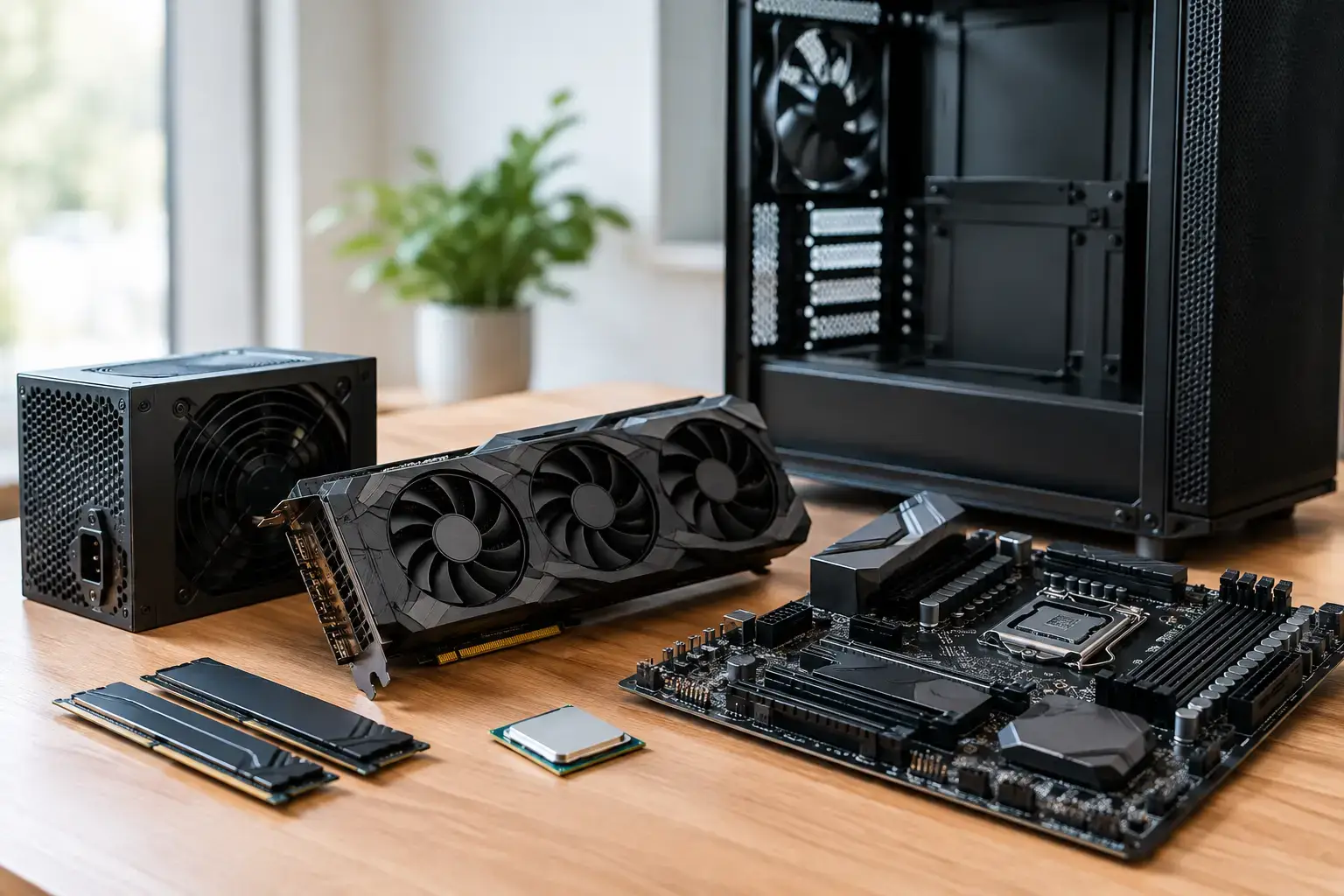
A PC can post, boot into Windows, and still be nowhere near ready for daily use. The real test comes later: a long gaming session at high settings, a demanding export with browser tabs open, or an eight-hour workday where the system simply has to stay responsive. Custom PC reliability is not one feature on a spec sheet. It is the result of choosing compatible parts, assembling them carefully, configuring them correctly, and testing the finished system as a whole.
That distinction matters when you are buying a gaming desktop, creator workstation, or office PC. A low price can look attractive until unstable memory, poor airflow, an undersized power supply, or a poorly balanced component list turns everyday use into crashes, heat, noise, and troubleshooting. A well-built custom PC should feel fast when it is new and remain dependable as your needs grow.
What Custom PC Reliability Actually Means
Reliability is often confused with raw performance. A powerful Ryzen 9 or Intel Core i9 processor is excellent for multi-core workloads, but it does not automatically make a PC dependable. In the same way, a high-end RTX graphics card can deliver outstanding visual fidelity and high-FPS esports performance, yet the overall experience still depends on the power delivery, cooling, memory, motherboard, and software setup around it.
A reliable custom system starts consistently, remains stable under load, keeps temperatures in a sensible range, and performs as its components are designed to perform. It should also be easy to diagnose and upgrade later. That is where custom-built systems have an advantage over many sealed mass-market desktops: you can see what is inside, replace individual parts when needed, and expand storage or memory without replacing the entire machine.
There is no single “best” configuration for every buyer. A Fortnite and Roblox machine does not need the same cooling capacity or graphics card as a 4K video editing workstation. Reliability comes from matching the build to the workload rather than overspending on one headline component while compromising everywhere else.
Start With Components That Are Built to Work Together
The motherboard is the foundation of the build. It determines processor support, memory compatibility, storage options, networking, expansion, and future upgrade paths. A quality board with the appropriate chipset and power delivery gives a modern Intel Core or AMD Ryzen processor the stable platform it needs, particularly during sustained gaming, rendering, or multitasking.
Memory is another common source of avoidable instability. Capacity matters – 16GB remains a practical starting point for many gaming systems, while 32GB is often the smarter choice for creators, heavy multitaskers, and buyers who want more breathing room. But memory speed and configuration matter too. A matched kit installed in the recommended slots is more dependable than mixing unrelated modules later and hoping they behave identically.
Storage should not be treated as an afterthought. A quality NVMe SSD makes a major difference to boot times, game loading, project access, and general responsiveness. For workstation users handling large media libraries, pairing a fast primary SSD with additional high-capacity storage can make more sense than filling one drive to its limit. Drives need room for updates, applications, cache files, and normal system maintenance.
The power supply is the component many buyers never see, but it protects every component they do. Wattage must be sufficient for the CPU and GPU combination, with headroom for load spikes, storage additions, and future upgrades. Quality matters just as much as the number printed on the box. A premium, appropriately rated PSU delivers consistent power and avoids turning a high-performance build into a weak-link system.
Cooling Is About Consistency, Not Just Lower Numbers
A CPU or graphics card is designed to protect itself when temperatures rise, usually by reducing clock speeds. That safeguard is useful, but it is not the performance experience you paid for. Proper cooling helps components maintain their expected speed during long sessions instead of repeatedly boosting, throttling, and recovering.
Case airflow is the starting point. A case needs a clear path for cool air to enter and warm air to leave, along with enough quality fans to move air across the CPU, graphics card, motherboard, and storage. More fans are not always better if they are poorly positioned or excessively loud. The goal is balanced airflow that keeps temperatures controlled without making the PC distracting at a desk.
CPU cooling should suit the processor and use case. An entry-level Ryzen 5 or Intel Core i5 system built for everyday gaming may work perfectly with a capable air cooler. Higher-core-count processors used for video editing, 3D work, or sustained production workloads can benefit from a larger tower cooler or liquid cooling setup. Neither approach is automatically superior. A well-installed air cooler is simple and durable, while a properly selected liquid cooler can offer extra thermal capacity in demanding builds.
Assembly Quality Protects Performance
Even excellent components can become unreliable when assembly is rushed. Correct mounting pressure on the CPU cooler, fully seated memory, secure graphics card installation, tidy cable routing, and properly connected front-panel and power cables all matter. These are basic details, but they are exactly where intermittent faults begin.
Clean cable management is not only about appearance through a tempered-glass panel. It improves airflow, prevents cables from interfering with fans, and makes future upgrades or servicing easier. A thoughtfully built desktop should be easy to inspect, not a tangled mystery that becomes difficult to work on the moment you add another SSD.
A professional assembly process also includes checking that components are recognized correctly. The system should report the right processor, installed memory capacity, storage devices, and graphics card. Fans should respond properly to temperature changes, and no unusual noise, vibration, or loose connection should be accepted as normal.
BIOS Setup and Testing Are Where Reliability Is Proven
New hardware does not always run at its intended settings straight out of the box. Memory profiles may need to be enabled so RAM operates at its rated speed. BIOS settings may require adjustment for processor support, storage behavior, fan control, and boot order. Firmware updates can improve compatibility, but they should be handled carefully rather than applied blindly just because a newer version exists.
This is why compatibility-checked builds offer more value than a box of parts. A PC should be tested beyond the desktop screen. Stress testing the processor and graphics card, checking memory stability, monitoring temperatures, and verifying storage performance help expose weaknesses before the system reaches the customer. A build that survives a brief startup test may still fail after an hour of sustained load.
At PCZone, that hands-on stage is central to the value of a custom system. Expert assembly, BIOS and memory-profile configuration, and system testing turn selected components into a ready-to-use PC rather than a project waiting to go wrong on a busy evening.
Upgradeability Is Part of Long-Term Reliability
A reliable PC is not one that never changes. It is one that can adapt without forcing a full replacement. Choosing a motherboard with additional M.2 storage slots, memory capacity beyond your immediate needs, and a case with practical room for upgrades makes future changes straightforward.
Buy for the workload you have, with a realistic path for the workload you may have next. Gamers may add a larger SSD as libraries grow or upgrade the graphics card in a few years. Creators may move from 32GB to 64GB of memory when projects become heavier. Small businesses may need extra storage or better networking as teams and files expand.
There are limits, of course. A budget system should not be loaded with expensive features that will never be used. Equally, saving a small amount now on a cramped case, weak PSU, or bare-minimum motherboard can make a future upgrade unnecessarily costly. The best balance depends on your budget, performance target, and how long you expect to keep the system.
Simple Habits Keep a Good PC Running Well
Once the PC is on your desk, reliability becomes a shared responsibility. Keep the system on a hard, clear surface rather than deep carpet. Leave space around intake and exhaust vents. Install graphics drivers and operating system updates from trusted sources, but avoid piling on unnecessary “optimizer” utilities that promise miracles while creating conflicts.
Dust is normal, especially in homes with pets or busy workspaces. A periodic clean with the system powered down helps fans and heatsinks do their job. Pay attention to changes: a new rattling fan, rising temperatures, unexpected shutdowns, or repeated blue screens are signals to investigate early, not annoyances to ignore.
The right custom PC should give you confidence every time you press the power button. Choose the performance tier that fits your real workload, prioritize quality supporting components, and insist on a build that has been configured and tested with care. That is how a new desktop stays a fast, stable part of your setup long after the first game launch or first workday.

