



How to Improve Esports FPS for Competitive Play

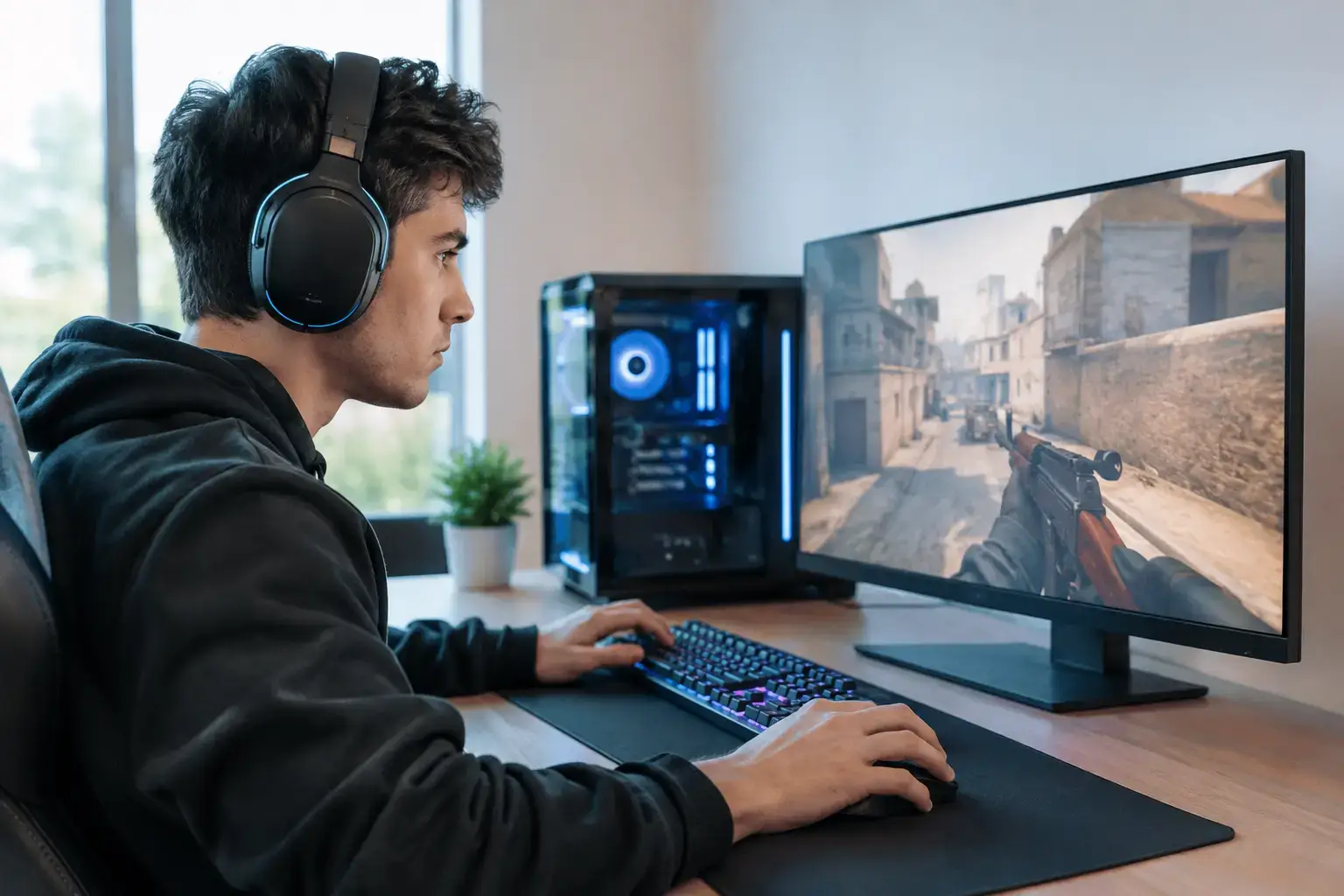
A dropped frame during a Fortnite build fight or a Valorant retake is not just an ugly number in a performance overlay. It can make tracking feel inconsistent, delay visual feedback, and turn a clean shot into a missed opportunity. Learning how to improve esports FPS starts with treating your whole PC as a competitive system, not simply buying the most expensive graphics card available.
High frame rates come from balanced hardware, sensible in-game settings, clean software, and a display that can show the performance your PC produces. The right priorities depend on the game, your monitor resolution, and whether your current system is CPU-limited or GPU-limited.
Start With a Realistic FPS Target
Before changing settings, match your target to your monitor. A 144Hz monitor can display up to 144 frames per second, while 240Hz and 360Hz models are built for players who want the smoothest possible motion and the lowest practical display latency. Running 300 FPS on a 60Hz display can still reduce some input delay, but it will not look like 300 unique frames per second.
For most competitive players, 144 FPS is a strong starting point. A stable 144 FPS generally feels better than an unstable frame rate that jumps between 100 and 220. If you own a 240Hz display, aim for a consistent 240 FPS in your primary esports titles where possible.
This is why benchmark averages only tell part of the story. Watch for 1% lows, which show how performance behaves in demanding moments. A PC that averages 240 FPS but repeatedly dips to 90 FPS during smoke effects, busy endgames, or large team fights will feel less responsive than its headline number suggests.
How to Improve Esports FPS With Game Settings
Competitive settings are not about making every game look poor. They are about removing visual effects that cost performance without helping you spot an opponent, read the map, or react faster.
Start with the display mode. Use exclusive fullscreen when a game supports it reliably, then set the refresh rate correctly inside the game and in your operating system. It is surprisingly common for a high-refresh monitor to be left at 60Hz after a new cable, driver update, or system setup.
Resolution is the next major lever. Native 1080p remains the practical sweet spot for high-FPS esports gaming, especially for players using 144Hz or 240Hz monitors. Moving from 1440p to 1080p significantly reduces the workload on your graphics card. Lower resolutions can push even more frames, but the image may become too soft for your preference, particularly when identifying distant targets.
Turn down GPU-heavy settings first: shadows, ambient occlusion, reflections, volumetric lighting, post-processing, motion blur, depth of field, and high-quality anti-aliasing. In many esports games, low or medium textures can also free graphics memory, although texture quality usually has less effect on FPS than shadows and lighting.
Keep view distance high enough to preserve useful information. Lowering it too far can hide players, map objects, or effects that matter in a match. The best competitive settings are game-specific, so test changes in a repeatable scenario rather than copying a pro player’s configuration without checking the result on your own hardware.
Frame caps require a little nuance. An uncapped frame rate can reduce latency when your PC has plenty of overhead, but it may also create bigger swings in frame times, higher temperatures, and unnecessary fan noise. A cap slightly below your monitor’s maximum refresh rate can provide more consistent pacing in some setups. Test both approaches in the games you actually play.
Identify the Hardware Bottleneck Before Upgrading
A graphics card upgrade is not automatically the answer. At 1080p competitive settings, games such as Counter-Strike 2, Valorant, Fortnite Performance Mode, Rainbow Six Siege, and Overwatch 2 often lean heavily on CPU performance. If your GPU usage sits well below 90% while the frame rate refuses to climb, the processor, memory, or background software may be holding the system back.
A CPU-limited esports PC benefits from a modern processor with strong single-core performance, fast DDR4 or DDR5 memory, and a motherboard that supports the memory profile correctly. For a new build, current Ryzen 5 or Intel Core i5 processors are excellent high-FPS starting points. Players who stream, record gameplay, run Discord, keep browser tabs open, or want stronger minimum FPS may benefit from Ryzen 7 or Intel Core i7 performance tiers.
If GPU usage is consistently near 95% to 100%, your graphics card is the likely limit. In that case, lowering resolution and visual settings can help immediately, while a GPU upgrade will provide the larger long-term gain. Pair the card sensibly with the rest of the build. A powerful graphics card installed beside an older entry-level CPU may deliver excellent visual quality but disappointing esports frame rates.
Memory matters more than many first-time builders expect. For modern gaming, 16GB is the sensible minimum, while 32GB provides more breathing room for demanding games, streaming, creator workloads, and multitasking. Two matched memory sticks running in dual channel are essential. A single stick can reduce CPU performance and hurt the low FPS figures that competitive players notice most.
Fast NVMe storage does not usually raise average FPS dramatically, but it improves boot times, game loading, shader compilation behavior in some titles, and overall system responsiveness. It is a worthwhile foundation for a gaming PC that needs to feel quick every day, not just on a benchmark chart.
Clean Up the Software Side
A well-built gaming PC can lose performance to unnecessary software. Close browser windows, launchers, RGB utilities, cloud-sync tools, and recording apps you are not using before competitive play. One background process rarely destroys performance on its own, but several can consume CPU time, memory, storage activity, and network resources at exactly the wrong moment.
Update your graphics driver, but do not assume every new version is mandatory on match day. If your game is stable and performing well, avoid making major driver or operating system changes immediately before a tournament or ranked session. Update first, test your favorite games, then keep the setup that works.
Use your operating system’s performance power mode when gaming on a desktop or plugged-in laptop. Laptop players should also confirm that the game is using the dedicated GPU rather than integrated graphics. This one setting can make the difference between a sluggish experience and the frame rate the hardware is actually capable of delivering.
Disable overlays you do not need. Game launchers, chat apps, capture tools, and GPU utilities can all add overlays. Keep the tools that provide value, such as a lightweight frame-rate monitor for testing, and remove the rest while troubleshooting stutters.
Control Heat, Power, and Frame-Time Spikes
A PC that starts at 240 FPS and falls to 140 FPS after 20 minutes has a stability issue, not a settings issue. High CPU or GPU temperatures can reduce clock speeds to protect components. Dust buildup, poor case airflow, weak cooling, and old thermal paste can all contribute.
Check temperatures while playing a demanding match, not only while sitting in a game menu. Modern hardware is designed to run warm, but sustained thermal throttling is a problem worth addressing. Improve airflow with properly positioned intake and exhaust fans, make sure cables are not blocking the front intake, and use a case sized for the components inside it.
Power delivery also matters. An undersized or low-quality power supply can cause instability under gaming loads, especially after a graphics card upgrade. Choose a quality unit with enough headroom for the CPU, GPU, cooling, and future upgrades. Reliable performance depends on more than the parts visible through the side panel.
Build for the Game You Play Most
There is no single perfect esports PC. A player focused on Valorant at 1080p and 240Hz may get better results from prioritizing CPU performance and fast memory. Someone who plays Warzone, Apex Legends, and newer AAA games alongside competitive titles may need more graphics power and 32GB of RAM. A 1440p 165Hz setup shifts even more of the budget toward the GPU.
That is why a compatibility-checked, fully upgradeable build has real value. It gives you a clear performance tier today without locking you into a mass-market configuration that is difficult to improve later. A balanced system, configured correctly from the start, delivers smoother frame times and a more reliable competitive experience than a parts list built around one oversized component.
Treat FPS as part of a complete setup: a capable PC, a high-refresh display, sensible settings, stable temperatures, and a clean operating environment. Once those pieces are working together, your hardware stops getting in the way and lets your practice show on screen.

