


Blog
How to Improve Gaming Latency: 9 Real Fixes

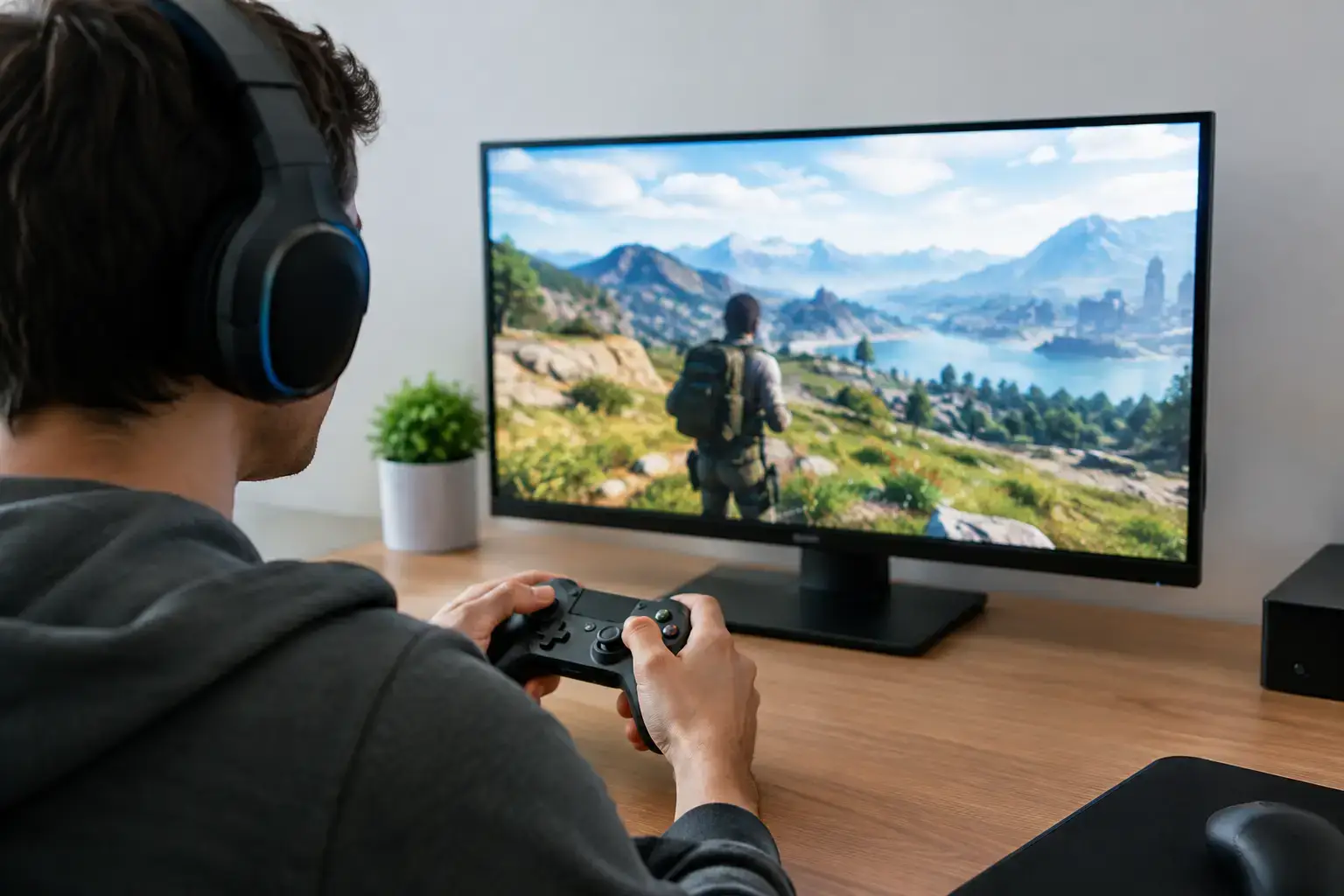
A game can show 200 FPS and still feel slow. You click, but the shot registers a fraction later than expected. You dodge on your screen, then see the elimination screen anyway. If you are searching for how improve gaming latency, the answer is not always a faster internet plan or a more expensive graphics card. Gaming latency is the total delay between your input and what you see or what the game server confirms.
For competitive shooters, racing games, fighting games, and high-FPS esports titles, those small delays add up. The goal is not merely a low ping number. It is a stable, responsive setup from your mouse or controller to your display, PC, router, and game server.
What gaming latency actually includes
“Lag” gets used for several different problems, and fixing the wrong one wastes time and money. Network latency is the travel time between your PC and the game server, usually shown as ping in milliseconds. High ping can make players warp, shots register late, and movement feel delayed.
Input latency is the delay from pressing a key, moving a mouse, or pulling a controller trigger to the game responding. System latency covers the chain inside your PC: the CPU prepares the frame, the GPU renders it, and the display shows it. Display latency is the time your monitor takes to present that finished frame.
A high-end GPU can help reduce system latency, but it will not fix an overloaded Wi-Fi connection. Likewise, a 240Hz monitor feels more immediate than a 60Hz screen, but it cannot compensate for a server thousands of miles away. Start by identifying when the problem happens.
If the entire match feels delayed and the ping graph spikes, focus on your network. If offline games feel sluggish too, look at your PC, peripherals, and display settings. If the game runs smoothly but feels inconsistent during busy scenes, CPU load, background processes, or unstable frame times may be the real issue.
How to improve gaming latency at home
The most reliable gains usually come from removing instability before chasing tiny benchmark improvements. Work through the basics first, then tune your system around the games you play.
Use wired Ethernet whenever possible
A direct Ethernet connection is still the best choice for a desktop gaming PC. Wi-Fi has improved dramatically, particularly with newer routers, but it remains more vulnerable to distance, walls, interference, and other devices competing for airtime. Those factors often create jitter, which is variation in latency from moment to moment.
Connect your PC to the router with a quality Ethernet cable and test several matches. If running a cable is genuinely impossible, position your PC close to the router, use the 5GHz or 6GHz band where available, and avoid placing the router behind a TV, inside a cabinet, or beside other wireless equipment.
Stop other traffic from fighting your game
Your connection may be fast enough on paper while still performing poorly during a match. Large downloads, cloud backups, 4K streaming, video calls, and game updates can fill the available bandwidth. The resulting congestion is often more damaging than a modestly higher baseline ping.
Before ranked play, pause downloads on your PC and check what other devices in the home are doing. If your router supports Quality of Service settings, prioritize your gaming PC or game traffic. QoS cannot create bandwidth that does not exist, but it can prevent a large upload or download from dominating the connection.
Select the closest game server
Many games automatically choose a region, but automatic selection is not perfect. Check the in-game server or data center setting and choose the closest region with consistently low ping. A server with a stable 35ms connection can be preferable to one that jumps between 20ms and 80ms.
Do not use a VPN to reduce latency unless you have tested it and know it improves the route to that specific game server. In most cases, a VPN adds another stop and increases delay. It can occasionally help with poor routing, but it is not a universal ping fix.
Keep drivers, firmware, and Windows current
Graphics drivers can improve game performance and address stuttering, while motherboard chipset and network drivers can improve stability. Update from the component manufacturer or your PC builder rather than installing random driver tools.
A properly configured custom system should already have its BIOS and memory profile set up, but it is worth checking after a major update or hardware change. Fast memory running at its intended speed helps the CPU deliver frames consistently, especially in esports games that are sensitive to CPU performance.
Reduce PC-side input and frame latency
Low latency depends on steady frame delivery, not only a high average FPS number. A system that averages 180 FPS but drops sharply during fights can feel worse than one that holds a stable 144 FPS.
Use the right graphics settings for your target frame rate
For competitive gaming, prioritize settings that keep FPS above your monitor refresh rate most of the time. Heavy ray tracing, maximum shadows, extreme view distance, and demanding resolution scaling may look impressive, but they can increase rendering delay when the GPU is fully loaded.
Start with a sensible performance preset, then raise visual settings that matter to you without pushing the GPU to its limit. A midrange gaming PC with an RTX or Radeon graphics card can deliver excellent responsiveness at 1080p or 1440p when settings match the hardware. The right target depends on the game: cinematic single-player titles may be enjoyable at 60 FPS, while Valorant, Fortnite, Call of Duty, and similar titles benefit from far higher and steadier frame rates.
Turn on low-latency features where they fit
Many games and GPU drivers offer latency-focused settings. NVIDIA Reflex, when supported in a game, is often a strong option for reducing render queue delay. AMD Anti-Lag can serve a similar purpose on supported Radeon setups. Use the game’s own low-latency setting first when available, then test driver-level options carefully.
These features are not magic switches. Their benefit is usually greatest when your GPU is under heavy load. If a setting introduces stutter, instability, or unusual frame pacing in a particular title, turn it off and compare. The best configuration is the one that feels consistent over a full match, not the one with the most impressive-looking menu option.
Close unnecessary background apps
Browsers with multiple video tabs, recording tools, RGB utilities, launchers, file syncing, and antivirus scans can use CPU time, memory, storage activity, or network bandwidth. You do not need to strip Windows down to the bare minimum, but close software you do not need before competitive play.
Pay special attention to overlays. Chat, capture, performance-monitoring, and game overlays are useful, yet several running at once can cause conflicts or stutters. Keep the tools that add value and disable the rest for testing.
Check your power and temperature settings
A laptop in a quiet or battery-saving profile may limit CPU and GPU performance. On a desktop, poor airflow or dust buildup can cause components to reduce clock speed under load. That produces frame-time spikes that feel like input delay.
Use a performance-oriented power profile while gaming, ensure your fans and cooling are working correctly, and give the PC enough airflow. A compatibility-checked desktop with appropriate cooling, a quality power supply, and a balanced CPU-GPU pairing is easier to keep responsive than a system built around one oversized component and several compromises.
Your monitor and peripherals matter more than many players expect
A 60Hz display refreshes every 16.7ms. A 144Hz display refreshes every 6.9ms, while a 240Hz display refreshes every 4.2ms. That does not mean every player needs a 240Hz monitor, but a higher-refresh display can make aiming, tracking, and movement feel noticeably more immediate when the PC can feed it enough frames.
Make sure Windows and the game are actually set to the monitor’s maximum refresh rate. It is common to connect a 144Hz or 165Hz display and accidentally leave it at 60Hz. Use DisplayPort or the correct HDMI standard for your monitor and graphics card, as older cables or ports can limit the available refresh rate.
For mice, use a wired model or a reputable low-latency wireless gaming mouse, keep its battery charged, and avoid a crowded USB hub if you encounter intermittent behavior. Controller players should use a wired connection if they want the most predictable response. Disable excessive controller dead zones only if stick drift is not an issue.
When an upgrade is the right fix
Settings can only do so much if your hardware cannot hold the frame rate your display and game demand. An older four-core CPU may struggle in large multiplayer matches even if the graphics card is capable. Limited RAM can cause hitching when the game, browser, voice chat, and background apps compete for memory. A hard drive can lengthen load times and worsen asset streaming stutters in modern games.
For most current gaming builds, a fast SSD, 16GB of RAM as a practical minimum, and a balanced modern CPU and GPU create a strong baseline. Players targeting high-refresh 1440p gaming may need more graphics power than those playing esports titles at 1080p. Creators who game, stream, edit video, or multitask heavily should also consider 32GB of memory and a CPU with additional multi-core power.
PCZone builds are configured around compatible, upgradeable components, which matters when you want smooth performance now without replacing the entire system later. The best upgrade is not always the most expensive part. It is the part currently holding back your target game and monitor.
Before changing five settings at once, test one improvement through several matches and watch for consistency. A wired connection, correct monitor refresh rate, stable frame rate, and well-matched PC will make every input feel closer to instant – and that is where better gaming starts.

