


Blog
How to Reduce PC Noise Without Losing Performance

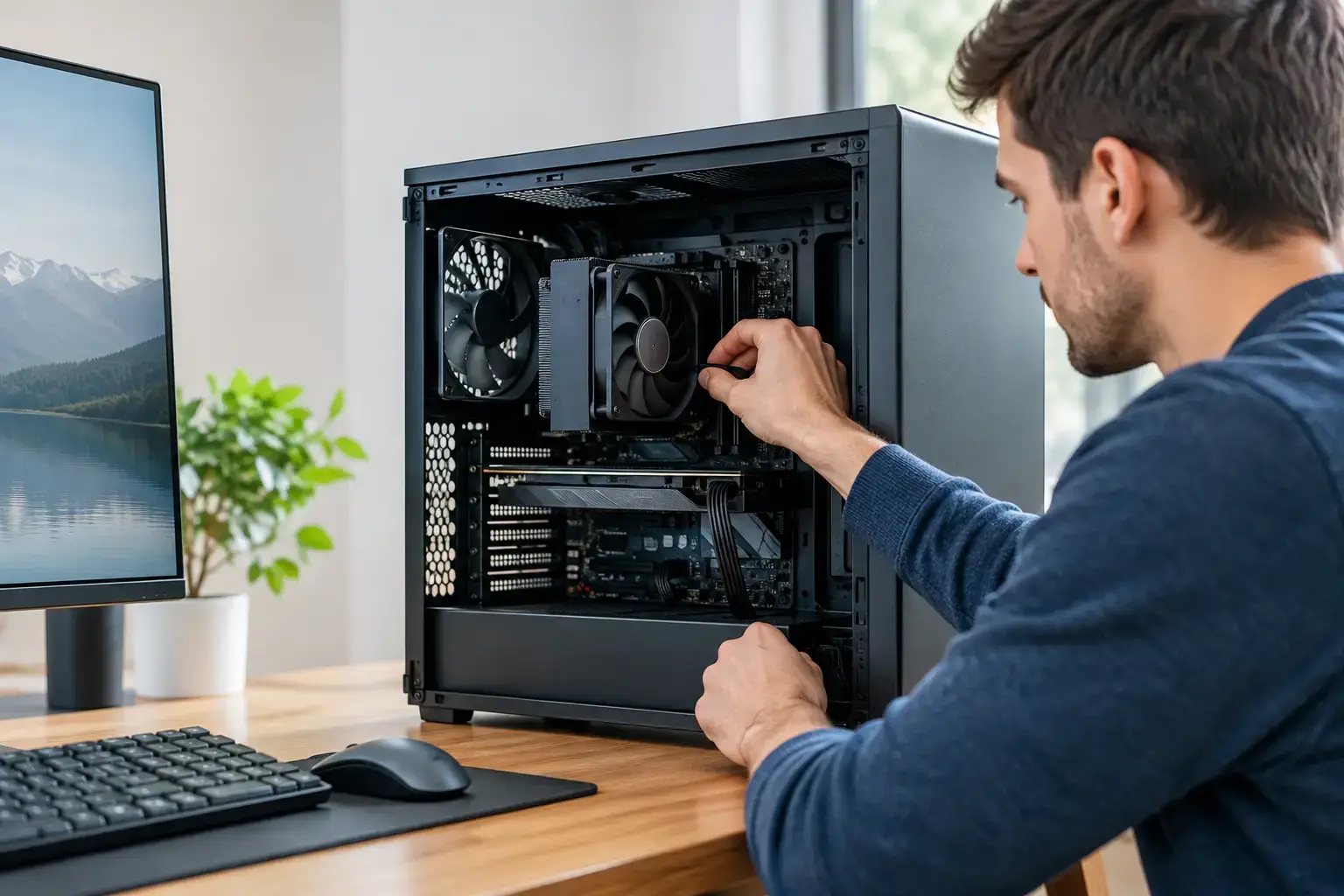
A loud PC is not always a powerful PC. If your fans surge during a Fortnite match, your GPU sounds like it is taking off during a render, or a low hum carries across a quiet office, the fix is often more precise than simply buying quieter hardware. Learning how to reduce PC noise starts with identifying which component is making the sound, then improving cooling behavior without sacrificing the performance you paid for.
How to Reduce PC Noise: Find the Source First
PC noise usually comes from airflow, vibration, or a mechanical component. Before changing settings or replacing parts, listen closely to when the noise appears. A system that is quiet on the desktop but loud in games is likely reacting to CPU or GPU temperature. A constant buzzing or rattling at all times points more toward a case fan, hard drive, power supply, or panel vibration.
Start with the side panel on and the PC sitting where it normally lives. Open a game, editing application, or benchmark that reliably creates the noise. Watch your CPU and GPU temperatures while the system is under load. If temperatures remain reasonable but fans are racing, the fan curve may be too aggressive. If temperatures are high, the cooling setup needs attention before you slow anything down.
Avoid stopping fans with your fingers or putting tools inside a running system. If you need to inspect a fan, power the PC down first. A quick visual check can reveal a loose cable touching a fan blade, a buildup of dust, or a fan that is not spinning smoothly.
Clean Dust Without Restricting Airflow
Dust is one of the most common reasons a previously quiet desktop becomes noisy. It insulates heatsinks, clogs front intake filters, and forces fans to spin faster to maintain safe temperatures. This is especially noticeable in gaming PCs with powerful graphics cards, where a few degrees of extra heat can trigger a much louder GPU fan profile.
Shut the system down, switch off the power supply, and unplug it. Remove the front filter, top filter, and side panel where applicable. Use compressed air in short bursts to clear dust from case fans, CPU coolers, radiator fins, graphics card heatsinks, and filters. Hold fan blades still while cleaning so they do not overspin.
Do not vacuum directly inside the PC. Static electricity and accidental contact with small components are avoidable risks. Clean filters regularly, especially if the computer sits on carpet, near pets, or close to an open window. A clean intake path gives every fan a better chance of doing its job quietly.
Tune Fan Curves Instead of Running Fans Flat Out
A well-built PC does not need every fan at maximum speed the moment a component reaches a modest temperature. Fan curves control how quickly fans increase their speed as temperatures rise. A smoother curve reduces abrupt noise changes while still delivering strong cooling when the system is genuinely working hard.
Motherboard BIOS settings usually control CPU and case fans. Many boards can detect whether a fan uses PWM or DC control, which matters for accurate speed adjustment. Set fans to run quietly at idle and during light tasks, then gradually increase speed as CPU or motherboard temperature rises. The exact curve depends on your cooler, case airflow, and room temperature, but the goal is simple: no unnecessary fan spikes during web browsing, streaming, or office work.
Graphics card fan curves are typically adjusted through the card manufacturer’s software. This can be particularly useful when a GPU repeatedly jumps between fan speeds in lighter games. Make small changes, then test with the games or creative workloads you actually use. Keep an eye on temperatures, clock speeds, and stability rather than chasing silence at any cost.
For gaming systems, it is normal for fans to become audible under sustained high-FPS loads. The target is a controlled, consistent sound profile, not a PC that runs hot just to stay silent.
Improve Case Airflow Before Buying More Fans
Adding fans is not automatically the answer. More fans can create more noise, and poorly placed fans may compete with one another rather than move air efficiently. A balanced layout usually uses front or bottom intake fans to bring cool air in, with rear and top exhaust fans carrying warm air out.
Make sure the front of the case has room to breathe. Placing a desktop inside a tight cabinet, pushing its intake against a wall, or setting it directly on deep carpet can restrict airflow and raise fan speeds. Leave clear space around the front, top, and rear vents. If the PC is under a desk, a hard platform can be a worthwhile upgrade over carpet.
Cable management also matters. Loose cables in front of intake fans disrupt airflow and can create annoying tapping sounds if they touch blades. Route cables behind the motherboard tray where possible, and secure any cable that passes close to a fan.
A case with a fully sealed front panel may look clean, but it can make high-performance components work harder. For an RTX gaming build or multi-core workstation, a mesh-front chassis with quality, low-RPM fans often delivers a better mix of cooling and noise than a restrictive case loaded with extra fans.
Stop Vibration and Rattling at the Case
Not every PC noise is caused by fast fan speed. A faint buzz, metallic rattle, or hum can come from vibration traveling through the case panels, desk, or floor. This is common with aging fans, 3.5-inch hard drives, and cases with loose screws.
With the PC powered down, check that side panels, fan screws, expansion slot covers, and drive trays are secure. Do not overtighten screws, particularly on tempered-glass panels. If a panel rattles only at certain fan speeds, small rubber fan mounts or anti-vibration pads can help isolate the vibration.
Hard drives deserve special attention. They remain useful for large game libraries, backups, and media storage, but their spinning platters create more audible mechanical noise than SSDs. Moving your operating system, favorite games, and active project files to an NVMe or SATA SSD improves responsiveness and removes one potential source of hum. For some users, keeping a hard drive only for bulk storage is the best price-to-capacity compromise.
Check CPU Cooler Installation and Thermal Paste
A CPU cooler that is mounted unevenly or using old thermal paste can lead to higher temperatures and louder fans. This may show up as a processor that heats up unusually quickly during gaming, compiling, exporting video, or multitasking.
If the system has always been noisy, the cooler may be undersized for the processor. A basic stock cooler can handle lighter workloads, but it may struggle to stay quiet on a higher-power Ryzen 7, Ryzen 9, Core i7, or Core i9 CPU. A quality tower air cooler can offer excellent cooling with fewer moving parts than a liquid cooler. An all-in-one liquid cooler can also be effective, particularly in performance-focused builds, but its pump adds another potential sound source.
When replacing thermal paste or reinstalling a cooler, clean old paste carefully and apply a modest amount of fresh paste. Ensure the mounting pressure is even. If you are not comfortable working around the CPU socket and motherboard, professional assembly and servicing are a sensible choice.
Reduce GPU Noise Without Giving Up the Frame Rate
The graphics card is often the loudest component in a high-FPS gaming PC. It has the hardest job in modern games, particularly at high resolutions, high refresh rates, or with ray tracing enabled. Before changing hardware, check whether the GPU is running at an unnecessarily high frame rate.
If a game menu is pushing hundreds or thousands of frames per second, the GPU may run hotter and louder than the actual gameplay requires. Set a frame-rate cap that matches your monitor’s refresh rate or your preferred performance target. Enabling technologies such as V-Sync or an in-game frame limiter can reduce wasted GPU load in the right situation, though competitive players may prefer a higher cap for responsiveness.
A mild GPU undervolt is another advanced option. It can lower power draw and heat while retaining nearly the same real-world gaming performance, but every card behaves differently. Make changes gradually, test for crashes or visual artifacts, and save a stable profile. Over-aggressive undervolting can cause instability, so it is not a set-and-forget fix.
Coil whine is different from fan noise. It is a high-pitched electrical sound that can vary with frame rate and workload. It is not usually harmful, and it can be difficult to eliminate completely. A frame-rate cap may reduce it, but replacement is not always guaranteed to solve it.
When Quieter Parts Are the Right Upgrade
If your PC has been cleaned, tuned, and given proper airflow but remains distracting, component selection matters. Larger fans can move the same volume of air at lower RPM than small fans. Premium PWM case fans, a well-matched CPU cooler, and a graphics card with an oversized heatsink can make a meaningful difference in a custom build.
The right choice depends on your workload. A quiet home office PC can prioritize low-power components and large, slow-spinning fans. A gaming desktop needs enough cooling headroom for long sessions. A workstation handling renders or exports may be audible under sustained multi-core loads, but it should remain stable, predictable, and free from sudden fan surges.
A quieter PC is usually the result of smarter cooling, not weaker performance. Give the system clean airflow, tune it for the way you actually use it, and let its fans work hard only when the workload truly demands it.

