



PC Maintenance Guide for Faster, Stable Systems

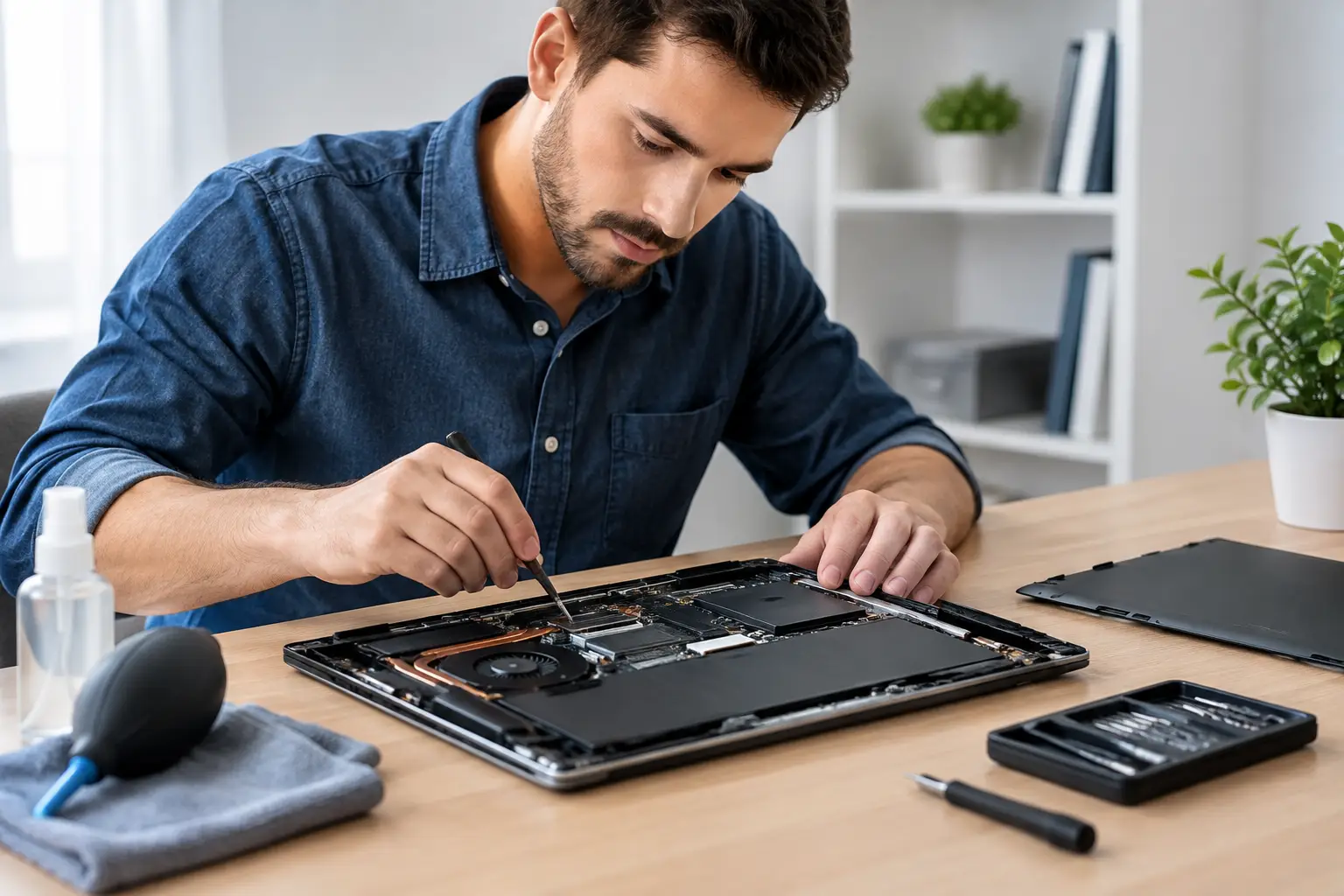
A PC that suddenly stutters in a game, takes minutes to boot, or sounds like a small vacuum cleaner is rarely beyond saving. More often, it needs routine attention in the right places. This PC maintenance guide focuses on the jobs that protect speed, stability, and component life without filling your system with questionable “cleaner” apps.
Whether you run high-FPS esports titles, edit video, manage a busy home office, or use one PC for everything, a little planned maintenance keeps the hardware performing the way it should. The goal is not to change settings every week. It is to spot issues early, keep temperatures under control, and make smart updates when they genuinely help.
Start With a Simple Maintenance Schedule
Most users do not need to treat their PC like a full-time project. A sensible schedule is enough. Every week or two, install critical operating system and security updates, check that your backup is working, and make sure storage is not close to full. Once a month, review startup apps, remove software you no longer use, and check for graphics driver updates.
Every three to six months, inspect dust filters and fan intakes. How often depends on the room. A PC on a carpet, near pets, or in a smoking environment collects dust much faster than a system raised off the floor in a clean office. If you notice rising fan noise or higher temperatures under load, move the cleaning date forward.
Once a year, take a closer look at your system health. Check storage status, test that the fans respond properly, inspect external cables, and consider whether your workload has outgrown your current memory or storage capacity. A fully upgradeable desktop makes this stage straightforward when it is built with compatible, quality parts from the start.
Keep Windows, Drivers, and Firmware Sensible
Updates improve security and can fix stability problems, but not every update deserves to be installed the second it appears. For most home and business users, Windows updates should be enabled and allowed to install after a restart at a convenient time. Avoid repeatedly postponing security updates, especially on a PC used for online banking, work files, or shared accounts.
Graphics drivers deserve more attention if you game or create content. NVIDIA, AMD, and Intel driver releases can improve support for new games, fix display bugs, and improve performance in specific applications. If your current driver is stable and you are not playing a newly released title, you do not need to chase every version. Update when there is a clear benefit, a bug fix relevant to you, or a game you want to run well.
Motherboard BIOS updates are different. A BIOS update can add CPU compatibility, improve memory stability, or resolve a known issue, but it should not be treated as routine monthly maintenance. Do it when the manufacturer identifies a fix you need, when installing supported new hardware, or when guided by an experienced technician. Never interrupt power during the process.
Control Heat Before It Controls Performance
Heat is one of the main reasons a capable PC starts to feel slower. Modern CPUs and graphics cards protect themselves by reducing clock speeds when temperatures become excessive. That means lower frame rates, longer exports, and more fan noise precisely when the system is working hardest.
Start with airflow. Your PC needs clear intake and exhaust paths, so leave space around the case rather than pushing it tightly into a cabinet. Keep front and bottom intake vents clear, particularly if the system sits near carpet. A desk or raised stand is better than the floor for both cooling and dust control.
When cleaning, shut down the PC, switch off the power supply, and unplug it. Remove dust filters and clean them with a soft brush or a low-powered vacuum held nearby. Use compressed air in short bursts to clear heatsinks, case fans, and graphics card fins. Hold fan blades still while blowing air through them so they do not spin excessively.
Do not spray liquid cleaner inside a PC. Avoid using a household vacuum directly on components, as static electricity and accidental contact are not worth the risk. If temperatures remain unusually high after cleaning, the issue may be a failed fan, poor cooler contact, aging thermal paste, or a case airflow setup that needs adjustment.
Protect Storage Space and Drive Health
A nearly full SSD can make ordinary tasks feel sluggish. Windows needs room for updates, temporary files, and virtual memory, while creative applications need spare capacity for caches and project files. As a practical target, keep at least 15% to 20% of your main SSD free when possible.
Use Windows Storage settings to identify large files, old downloads, and temporary data. Game libraries and video projects are common space users, so moving less-used files to a secondary SSD, external drive, or trusted cloud backup can make a meaningful difference. Do not delete files blindly from unfamiliar system folders just to recover a few gigabytes.
Traditional hard drives should be handled differently from SSDs. Windows can optimize both automatically, but SSDs should not be manually defragmented. Their maintenance process uses TRIM, which helps manage free storage blocks without the unnecessary wear associated with defragmentation. Mechanical hard drives can still benefit from defragmentation, though this is usually handled by Windows on schedule.
If you hear clicking from a hard drive, see repeated file errors, or receive warnings about drive health, back up your data immediately. Storage failure is not always dramatic. Sometimes it begins with occasional freezes, corrupt files, or programs that take far too long to open.
Use Security Tools Without Slowing Everything Down
Windows Security is a strong starting point for most users when it is kept enabled and updated. Pair it with sensible habits: use unique passwords, enable multi-factor authentication where available, and be cautious with unexpected attachments, browser pop-ups, and software downloads.
Avoid stacking multiple real-time antivirus suites. They can conflict with one another, use system resources, and create false alerts. One trusted real-time security solution is normally enough. A separate on-demand malware scan can be useful if you suspect a problem, but it should not replace good update and download habits.
Browser extensions also deserve a regular check. Old coupon tools, unknown PDF converters, and extensions installed by bundled software can affect privacy and performance. Remove anything you no longer recognize or use.
PC Maintenance Guide for Speed and Startup Control
A long startup time is often caused by too many programs launching in the background. Open Task Manager and review the Startup Apps section. Disable software that does not need to run the moment Windows starts, such as game launchers, chat apps, update helpers, and RGB utilities you rarely use.
Be selective. Security software, audio drivers, touchpad tools on laptops, and cloud-sync applications may need to start automatically. The right question is not “Can I disable this?” but “Do I need this running before I open it?”
Also watch background load when the PC feels slow. Task Manager can show whether the CPU, memory, disk, or GPU is under pressure. If memory is constantly near full during gaming, editing, or heavy multitasking, more RAM may be a better solution than software cleanup. Moving from 8GB to 16GB is often transformative for general use, while creators and advanced multitaskers may benefit from 32GB or more.
Check Cables, Peripherals, and Physical Wear
Not every problem starts inside the case. A loose DisplayPort or HDMI cable can cause flickering and black screens. A worn charging cable can make a laptop appear unreliable. Dust in USB ports, a failing mouse cable, or a weak Wi-Fi signal can all look like bigger PC faults.
Inspect your most-used connections during your annual check. Make sure monitor cables are fully seated, power cables are not bent sharply, and surge protection is in place for valuable hardware. If a peripheral disconnects randomly, test it in another USB port before assuming the device has failed.
For laptops, keep vents clear and avoid using the machine on bedding or cushions that block airflow. Battery health naturally declines over time, so shorter runtime after several years is normal. Sudden swelling, excessive heat, or a lifting trackpad are not normal and should be assessed promptly.
Know When Maintenance Is Not Enough
Cleaning and updates solve many problems, but they cannot overcome hardware that no longer suits the workload. An older entry-level graphics card may struggle with modern high-resolution gaming even in a perfectly maintained PC. A system with a small SATA SSD may feel constrained once you work with large video files or multiple game libraries.
Upgrade based on the bottleneck. For faster loading and overall responsiveness, prioritize an NVMe SSD. For heavy multitasking and creative work, look at memory capacity. For gaming frame rates, the graphics card usually matters most, while CPU upgrades help in processor-heavy games, competitive esports, and productivity workloads.
A well-built system should make those choices easier. PCZone systems are assembled with premium, compatibility-checked parts and configured for ready-to-use performance, giving you a stable base that can grow with your needs.
Treat maintenance as performance protection, not a chore. Ten minutes spent clearing storage, checking startup apps, or cleaning a dust filter can prevent the frustrating slowdown that always seems to appear at the worst possible moment.


