


Blog
Best SSDs for Gaming PCs and Workstations

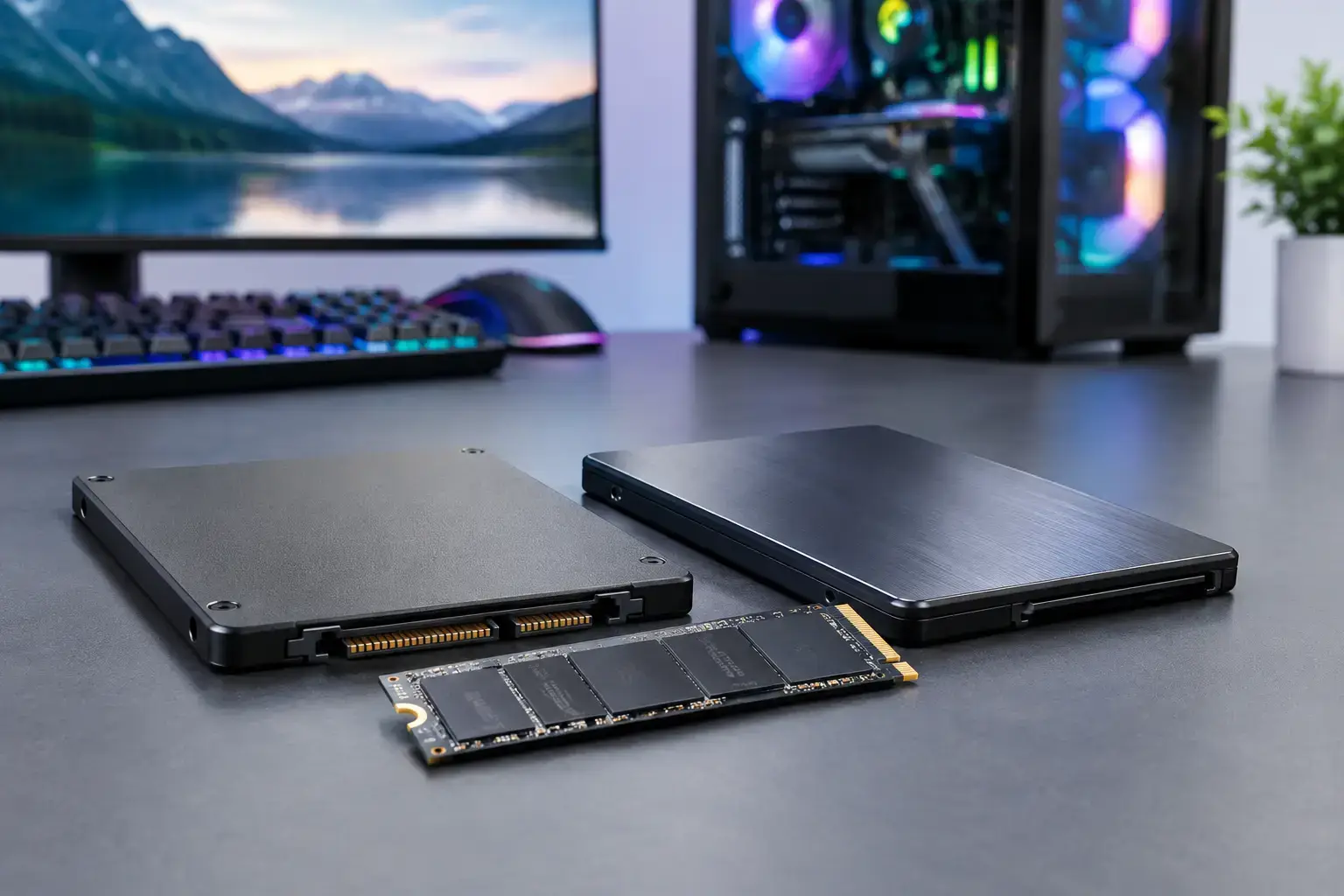
A fast graphics card gets the attention, but storage decides how quickly your PC gets into the action. The best SSDs cut boot times, speed up game loads, keep large projects moving, and make a new custom PC feel responsive from the first click. The right choice is not always the drive with the biggest sequential-read number, though. Your motherboard, workload, capacity needs, and budget matter just as much.
For a high-FPS gaming desktop, a capable PCIe 4.0 NVMe drive is usually the performance sweet spot. For editing, 3D work, and demanding professional workloads, capacity, sustained writes, endurance, and cooling can be more valuable than chasing a headline benchmark. For an office PC or an older system, a quality SATA SSD can still be a huge upgrade over a hard drive.
Best SSDs: Start With the Interface
Before choosing a model, check what your system supports. Most current gaming PCs and workstations use M.2 NVMe SSDs, which install directly on the motherboard. They are compact, cable-free, and substantially faster than traditional 2.5-inch SATA drives in tasks that move large files or load lots of small assets.
PCIe 4.0 NVMe drives are the practical choice for most buyers. They offer excellent real-world loading performance, strong value per gigabyte, and broad support across modern AMD Ryzen and Intel Core platforms. A drive such as the WD Black SN850X, Samsung 990 Pro, Crucial T500, or Kingston KC3000 sits in this high-performance category, depending on capacity and current pricing.
PCIe 5.0 SSDs raise peak transfer speeds further. Models such as the Crucial T705 or Seagate FireCuda 540 can make sense for advanced workstations handling very large video files, complex project caches, or high-volume data transfers. For standard gaming, however, the difference versus a good PCIe 4.0 drive is often difficult to feel. PCIe 5.0 drives also run hotter, cost more, and may need a substantial motherboard heatsink or an included active cooler.
SATA SSDs use the familiar 2.5-inch format and connect with power and data cables. Their top speed is far lower than NVMe, but they remain excellent secondary drives for game libraries, media storage, and upgrades to older PCs. A Crucial MX500 or Samsung 870 EVO can transform a system still relying on a mechanical hard drive.
Choose Capacity Before Chasing Peak Speed
A 1TB SSD is the sensible starting point for a modern gaming PC. Windows, applications, updates, and a handful of major games can fill 500GB surprisingly quickly. Current AAA titles frequently take 100GB or more, while creator software builds large caches in the background. A full SSD also slows down, so leaving roughly 10 to 20 percent free space helps maintain consistent performance.
For a first gaming build focused on esports titles such as Fortnite, Valorant, Minecraft, or Roblox, 1TB provides plenty of room without stretching the budget. If you play a broad mix of large titles, 2TB is the better long-term choice. It gives you room for a larger library, captures, mods, and future releases without regular uninstalling.
Creators and workstation users should think in terms of active projects, not just installed applications. A 2TB drive is a strong minimum for video editing, photography, design, coding environments, and multitasking-heavy work. A 4TB SSD becomes worthwhile when you keep current project media locally or work with high-bitrate 4K and 8K footage. In those cases, separating the operating system, active project files, and long-term archive across multiple drives can improve both organization and workflow speed.
What Makes One NVMe SSD Better Than Another?
Sequential read and write figures look impressive on a product page, but they only tell part of the story. They measure fast, straight-line transfers, such as copying a large video file. Everyday PC responsiveness also depends on random performance, controller quality, firmware, cache behavior, and how well the drive sustains speed after its cache fills.
TLC NAND is generally the preferred flash type for gaming and professional systems. It offers a strong balance of performance, endurance, and price. QLC NAND can lower the cost of high-capacity drives and is perfectly usable for secondary storage or lighter everyday use. The trade-off is that sustained writes can fall sharply once the drive’s fast cache is exhausted. If you routinely transfer hundreds of gigabytes, render to disk, or edit directly from the drive, TLC is usually the safer investment.
DRAM-equipped SSDs are also worth considering for a primary drive. Dedicated DRAM helps the controller track data efficiently, especially under demanding workloads. Many modern budget NVMe drives use Host Memory Buffer instead, borrowing a small portion of system memory. That design can still deliver good gaming and office performance, but a premium DRAM drive tends to offer more predictable behavior in heavy use.
Endurance ratings matter most when the drive will see frequent writes. Manufacturers typically express this as TBW, or terabytes written. A normal gaming PC may never approach the limit of a reputable consumer SSD, but content creators, developers, and workstation users should compare it carefully. Longer warranties are reassuring, but read them alongside the TBW rating and the brand’s support reputation.
The Best SSD for Each Type of PC
For an affordable home or entry-level gaming PC, prioritize a reliable 1TB PCIe 4.0 NVMe SSD from an established manufacturer. You do not need the absolute fastest model to get quick Windows startup, responsive apps, and fast game loads. Spending the difference on more RAM or a stronger GPU can deliver a bigger improvement to gaming performance.
For a balanced gaming system with a Ryzen 5, Ryzen 7, Core i5, or Core i7 processor, a 2TB PCIe 4.0 TLC NVMe drive is often the best all-around configuration. It supports a substantial game library and leaves headroom for clips, mods, and updates. Pair it with the motherboard’s M.2 heatsink where available, especially in a compact case with limited airflow.
For a premium RTX-powered gaming rig, a high-end PCIe 4.0 SSD remains a smart choice. DirectStorage-capable games can benefit from fast NVMe storage, but GPU performance and game optimization still have a greater impact on frame rate. PCIe 5.0 is an option if you want the newest platform and have the cooling for it, not a requirement for a top-tier gaming experience.
For a professional workstation, consider a two-drive setup. Use a fast 1TB or 2TB TLC NVMe SSD for Windows, applications, and active projects, then add a larger SSD for source media, exports, and local archives. This approach reduces contention when the system is reading project assets while writing previews, exports, or cache files. It also makes future storage upgrades straightforward.
Cooling, Compatibility, and Installation Details
An M.2 drive is easy to overlook because it is small, but it still produces heat under sustained loads. Most PCIe 4.0 drives benefit from a motherboard M.2 heatsink. PCIe 5.0 drives need particular attention, as high temperatures can cause thermal throttling that reduces performance during long transfers. Do not stack a drive’s bundled heatsink underneath a motherboard cover unless the manufacturer specifically supports that arrangement.
Check the physical M.2 length before buying. The common 2280 size works in most desktop motherboards, but compact systems and laptops may have different restrictions. Also verify the number of available M.2 slots and whether installing a drive affects PCIe lane sharing on your board. This is more relevant on certain older or entry-level motherboards, but it is worth confirming before you build.
When fitting an SSD into a new system, install the operating system on the fastest primary drive, update the motherboard BIOS if needed, and make sure the drive firmware is current. Enable the motherboard’s recommended memory profile separately, then test the system after setup. Storage reliability is not just about the SSD itself – stable power, correct cooling, current firmware, and compatibility-checked components all play a role.
PCZone builds can be configured around the storage tier that matches the job, from a straightforward 1TB gaming drive to high-capacity multi-drive workstation storage. That means you can prioritize frame rates, project capacity, or both without being locked into a generic prebuilt specification.
The best purchase is the SSD that stays fast enough when your PC is busy and leaves enough room for how you actually use it. Choose a reputable 1TB or 2TB PCIe 4.0 TLC NVMe drive for most new builds, keep it cool, and reserve PCIe 5.0 spending for workloads that can genuinely put those extra transfer speeds to work.

