


Blog
How to Choose Editing RAM for Faster Workflows

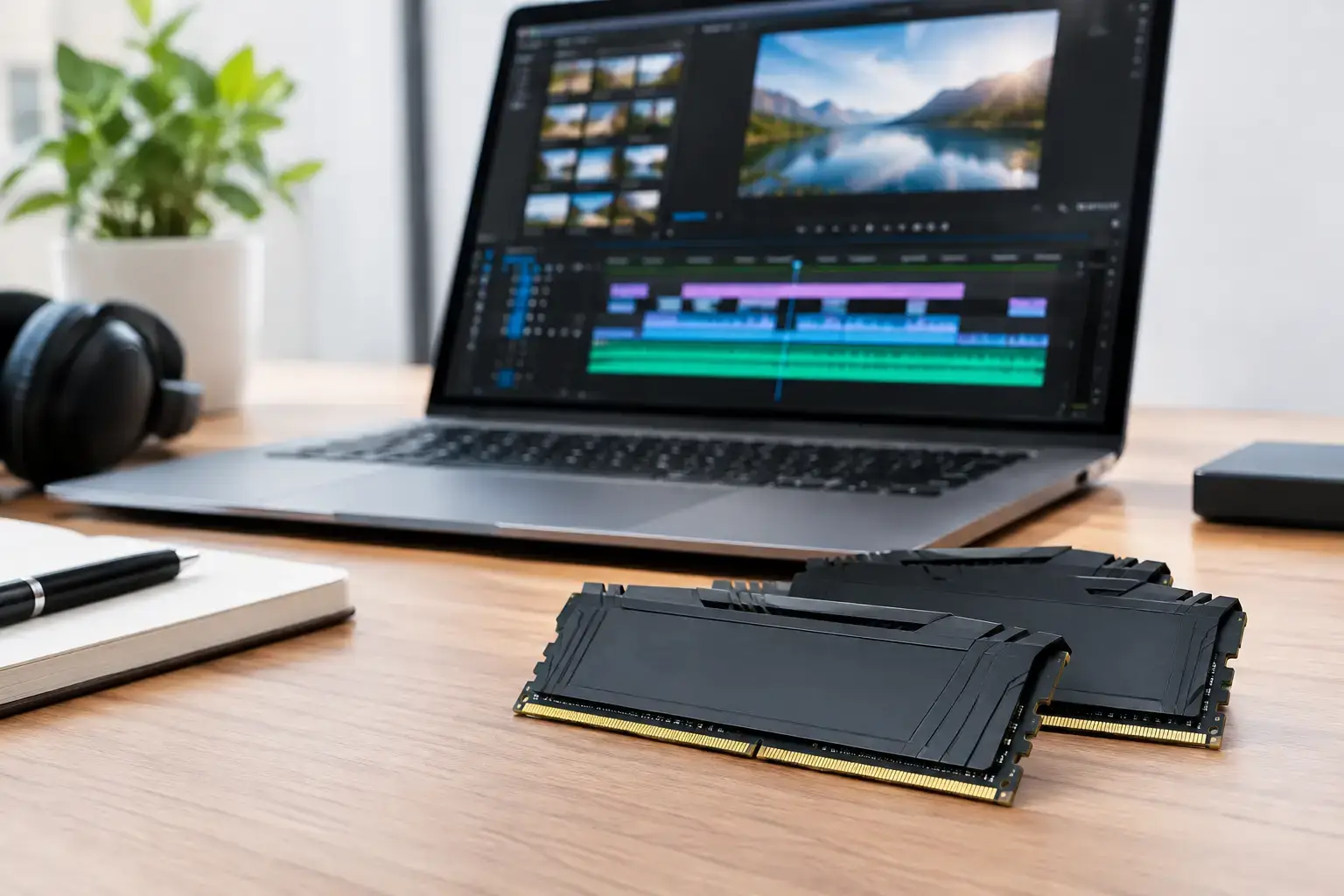
A 4K timeline that stutters when you add color correction, a Lightroom catalog that slows during exports, or an After Effects composition that keeps hitting disk cache all point to the same question: how to choose editing RAM that actually matches your workload. More memory will not fix every performance problem, but the right amount gives your CPU, graphics card, and editing software room to work instead of constantly swapping data to slower storage.
For most creators, 32GB is the sensible starting point. The best choice changes quickly once you move from short 1080p projects to long-form 4K edits, multicam footage, RAW photos, heavy motion graphics, or several creative applications open at once.
Start with the editing work, not the biggest number
RAM is your system’s fast working space. Your editing software uses it to hold active footage, previews, image data, effects, browser tabs, audio tools, and background processes while you work. When it runs short, Windows uses your SSD as virtual memory. Even a fast NVMe drive is much slower than RAM, so playback, switching applications, and exports can feel less responsive.
Resolution matters, but it is not the only factor. A lightly compressed 4K project with basic cuts may run comfortably on less memory than a 1080p project packed with layered graphics, noise reduction, compositing, and multicam angles. Codec choice matters too. H.264 and H.265 can be demanding to decode, while RAW footage, high-bit-depth color, and uncompressed assets can consume memory quickly.
Think about your real workflow. If you edit video while Photoshop, a web browser, cloud backup, and music software are open, choose RAM for that entire setup, not for the editor alone.
How to choose editing RAM by capacity
Capacity has the biggest day-to-day effect for editors. Speed is worth considering after you have enough memory to avoid routine slowdowns.
16GB: entry-level editing and focused projects
16GB can handle basic 1080p editing, short social videos, podcast production, and occasional photo work. It is workable for a beginner system with a modern CPU, a dedicated graphics card, and a clean workflow.
The trade-off is headroom. With Premiere Pro, DaVinci Resolve, or Photoshop open alongside Chrome, 16GB can fill fast. You may need to close background apps, use proxies, and keep timelines simple. It is best viewed as a budget starting point in a fully upgradeable desktop rather than a long-term target for serious video work.
32GB: the sweet spot for most creators
For most people editing 4K video, working with substantial photo libraries, or using several applications at once, 32GB is the performance tier to target. It gives your system useful breathing room for 4K timelines, standard effects, color correction, cache files, and normal multitasking.
A 32GB configuration is also a strong match for creators who game, stream, or work from the same PC. It delivers the responsive everyday experience that makes a workstation feel quick without pushing the budget toward capacity you may not use yet.
64GB: serious 4K, motion graphics, and demanding multitasking
Choose 64GB when your projects regularly include multicam footage, lengthy 4K edits, RAW media, large Photoshop documents, complex audio sessions, or After Effects compositions. It is particularly valuable if you keep Premiere Pro, After Effects, Photoshop, and other tools open together.
This capacity does not automatically double export speed. Your processor, GPU, media drive, and codec acceleration still matter. What it can do is reduce memory pressure, keep previews more consistent, and prevent your workstation from slowing down when a project gets complicated.
128GB and beyond: specialist workstation territory
128GB is for creators working with 6K or 8K footage, high-resolution RAW files, advanced VFX, 3D rendering, large virtual instruments, or professional-grade compositing. It also makes sense for a shared workstation that handles several heavy jobs throughout the day.
If you mainly edit YouTube videos, wedding films, gaming highlights, or standard 4K client content, 128GB is often better spent on a faster CPU, a stronger GPU, additional NVMe storage, or a color-accurate monitor. Buy it when your workload proves you need it, not simply because it is available.
Capacity first, then speed and latency
Once you have selected the right capacity, look at RAM speed. Modern DDR5 systems commonly use speeds such as 5600MT/s or 6000MT/s, while DDR4 systems may use 3200MT/s or 3600MT/s. The best supported speed depends on the CPU and motherboard platform.
Faster RAM can help CPU-heavy tasks and improve general responsiveness, especially on systems using integrated graphics. For a dedicated editing workstation, though, moving from 32GB to 64GB usually has more impact than choosing an extremely high-speed 32GB kit.
Latency is part of the equation as well. Lower latency is preferable when comparing memory of the same generation and similar speed, but it should not override capacity or platform compatibility. A balanced, compatibility-checked kit running at its intended profile is more valuable than chasing small benchmark gains with memory that may not be stable.
Use matched memory kits and dual-channel configuration
For a typical desktop, use a matched kit of two modules, such as 2 x 16GB for 32GB or 2 x 32GB for 64GB. This allows dual-channel operation, giving the CPU more memory bandwidth than a single stick can provide.
Avoid combining random old and new RAM modules just because their capacities match. Different speeds, timings, voltages, and memory chips can cause the system to run at reduced settings or create stability issues. Editing work is demanding enough without troubleshooting unexpected crashes during an export.
Four modules can be appropriate for high-capacity builds, but two larger modules often leave more upgrade room and can be easier for a platform to run at higher memory speeds. Check your motherboard’s memory slot layout and supported configurations before deciding.
DDR4 vs. DDR5: buy for the platform you are building
DDR4 and DDR5 are not interchangeable. A motherboard supports one or the other, and the wrong type simply will not fit. If you are upgrading an existing workstation, identify the motherboard and installed memory before ordering anything.
DDR4 remains capable for many editing systems, particularly when paired with a strong processor and enough capacity. DDR5 generally offers higher bandwidth and is the better choice for a new current-generation build, especially if you want a platform with a clearer upgrade path. The practical decision is usually tied to the CPU and motherboard package, not a standalone choice between memory generations.
For a custom system, the goal is straightforward: select memory that is validated for the board, can run its XMP or EXPO profile reliably, and leaves a sensible path to more capacity later. Proper BIOS configuration matters here. RAM installed at default settings may run below its rated performance until its memory profile is enabled.
Do not confuse system RAM with GPU VRAM
System RAM and graphics card VRAM handle different parts of the workload. System RAM supports the operating system, applications, footage, previews, and active project data. VRAM sits on the graphics card and is used for GPU-accelerated effects, textures, timeline processing, AI tools, and high-resolution display workloads.
A graphics card with limited VRAM can still hold back effects-heavy editing even if the PC has 64GB of system memory. The reverse is also true: a powerful GPU cannot compensate for a system that runs out of RAM whenever you open a large project. A balanced editing PC pairs appropriate RAM capacity with a capable CPU, dedicated GPU, and fast storage.
Plan upgrades without paying twice
Before you buy, check how many memory slots your motherboard has and how much RAM it officially supports. A 2 x 16GB kit in a four-slot board leaves two slots free, but adding another kit later is not always as simple as it sounds. Matched four-stick configurations can require lower speeds, and separate kits are not guaranteed to operate together at their advertised settings.
If you know 64GB is likely within the next year, buying 2 x 32GB from the start can be cleaner than replacing a 32GB kit later. On the other hand, a budget-conscious editor working mainly in 1080p can start with 32GB and invest the difference in a larger NVMe project drive or a better graphics card.
Watch your memory use during real projects. If usage routinely climbs above roughly 85 to 90 percent and the system becomes sluggish, it is time to add capacity. Build for the edits you want to take on next, with enough headroom that your workstation stays responsive when the deadline gets tight.

