


Blog
SATA SSD Versus NVMe Storage for Your PC

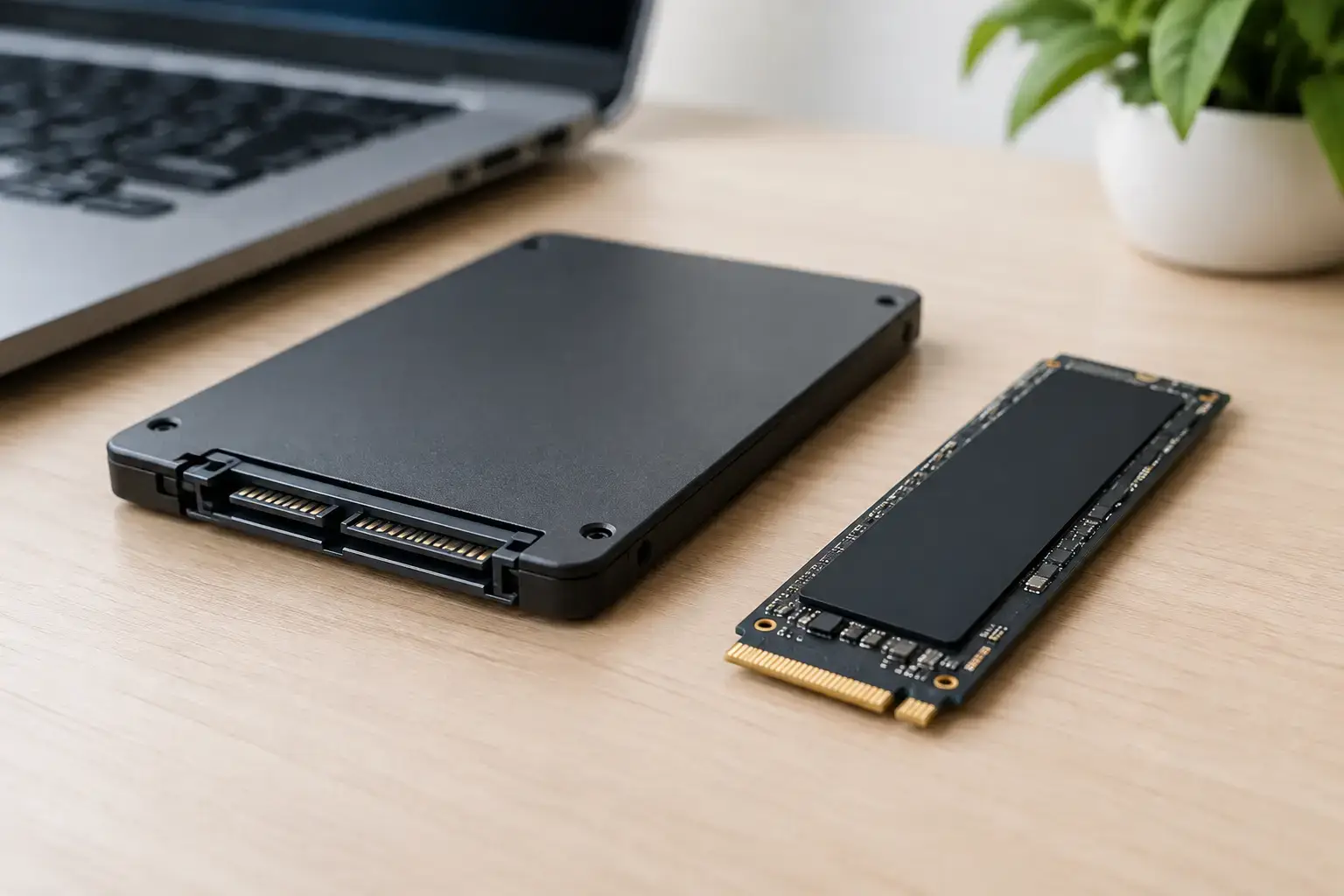
A fast graphics card and a powerful CPU can make a PC feel quick, but storage determines how quickly your system boots, games load, projects open, and files move. In the SATA SSD versus NVMe storage decision, NVMe is usually the performance winner, but SATA still earns its place in smart, budget-conscious builds. The right choice comes down to the workload, motherboard support, capacity target, and where every dollar delivers the biggest real-world gain.
SATA SSD Versus NVMe Storage at a Glance
Both options are solid-state drives, meaning neither has the spinning platters or mechanical arms found in older hard drives. That alone makes either one a major upgrade over a traditional HDD. Windows starts faster, games stop dragging through long loading screens, and everyday use feels far more responsive.
The difference is how each drive connects to the system. A SATA SSD uses the older SATA interface, originally designed around hard drives. Its practical ceiling is roughly 550 MB/s for sequential reads and writes. NVMe drives connect through PCIe lanes, usually in the compact M.2 form factor, giving them much more bandwidth. A mainstream PCIe 4.0 NVMe SSD can reach around 5,000 to 7,000 MB/s, while newer PCIe 5.0 models can go much higher in supported systems.
On a spec sheet, that gap is enormous. In practice, it matters most when the workload repeatedly reads or writes large amounts of data. Video editors transferring footage, creators opening large project files, professionals working with virtual machines, and gamers installing huge titles will notice the advantage most often.
| Storage type | Typical maximum speed | Best fit | Main advantage | | — | —: | — | — | | SATA SSD | About 550 MB/s | Budget upgrades, secondary storage | Strong value per GB | | PCIe 3.0 NVMe | About 3,500 MB/s | Everyday gaming and productivity | Big speed jump at sensible prices | | PCIe 4.0 NVMe | About 7,000 MB/s | New gaming PCs, creators, workstations | Excellent all-around performance | | PCIe 5.0 NVMe | 10,000 MB/s and above | Specialized high-end workloads | Maximum transfer throughput |
Why NVMe Feels Faster
NVMe was designed for flash storage rather than adapted from hard-drive technology. It handles many input and output requests at once with lower latency, which is especially useful when Windows, a game launcher, browser tabs, updates, and background applications all compete for storage access.
For a gaming PC, an NVMe boot drive keeps the system sharp when loading maps, patching games, unpacking files, and launching applications. Open-world games can benefit from faster asset streaming, although the actual improvement varies by title, game engine, CPU, and graphics card. An NVMe drive will not increase frame rates in the same way as a better GPU, so it should not take priority over graphics performance in a tightly priced build.
For creators and professional users, NVMe has a clearer productivity case. Editing high-bitrate 4K footage, caching previews, loading high-resolution image libraries, compiling code, and working with large CAD or 3D assets all involve frequent storage activity. Faster drives can reduce wait time between stages of the job, particularly when the source files and scratch disk are both on NVMe storage.
That said, advertised sequential speed is not the full story. Drive capacity, controller quality, cache design, sustained write behavior, and heat management all affect how a drive performs outside a marketing benchmark. A well-chosen PCIe 4.0 drive is often a better buy than chasing the fastest PCIe 5.0 number available.
When a SATA SSD Is Still the Right Choice
SATA is not obsolete. It is simply limited by a slower interface, and that limit is still fast enough for plenty of PCs.
A SATA SSD is a sensible option when upgrading an older desktop or laptop that has 2.5-inch SATA bays but no M.2 NVMe slot. It is also useful as a secondary game library or bulk project drive after a faster NVMe SSD handles Windows and core applications. A 2TB SATA drive can give you room for a substantial game collection without forcing compromises elsewhere in the build.
For office systems, web browsing, schoolwork, and general home use, the difference between a good SATA SSD and an NVMe drive may be hard to feel after Windows has loaded. Both are dramatically more responsive than an HDD. If choosing SATA allows more capacity, more memory, or a stronger processor, that can be the smarter overall configuration.
There is also a practical installation advantage. A 2.5-inch SATA SSD is easy to add to many existing PCs. It needs a SATA data cable and a power cable, but it does not depend on an available M.2 slot or PCIe generation support. For a straightforward storage upgrade, it remains reliable, affordable, and widely compatible.
Compatibility Matters More Than the Label
Before buying NVMe storage, check the motherboard or laptop specifications. Most modern desktops include at least one M.2 slot, but not every M.2 slot supports the same capabilities. M.2 describes the physical connector shape, not necessarily the protocol or speed. Some older slots accept only SATA M.2 drives, while newer slots support PCIe NVMe drives.
PCIe generations are generally backward compatible. A PCIe 4.0 NVMe SSD can work in a PCIe 3.0 slot, but it will operate at PCIe 3.0 speeds. Likewise, a PCIe 5.0 drive in a PCIe 4.0 system will not reach its rated peak throughput. That does not make the drive unusable, but it may make a lower-cost model the better-value choice.
Motherboard lane sharing also deserves attention in enthusiast builds. On certain platforms, populating a specific M.2 slot can affect available SATA ports or PCIe lanes. This is usually documented in the motherboard manual and is one reason compatibility-checked assembly matters. A properly planned custom PC avoids surprises after the build is complete.
Heat can affect high-speed NVMe drives too. PCIe 4.0 and PCIe 5.0 models may include a heatsink or benefit from the motherboard’s M.2 thermal cover. For normal gaming and office use, this is rarely a concern with a quality drive and sensible case airflow. For sustained transfers and workstation workloads, proper cooling helps the drive maintain performance instead of throttling under load.
Capacity Should Drive the Buying Decision
A fast 500GB drive fills up quickly. Windows, applications, recovery space, and a few modern games can consume most of it before the system has room to grow. For many new gaming PCs, 1TB is a practical starting point, while 2TB is a stronger long-term choice for players who keep several large titles installed.
Creators should budget for more than the operating system drive. Raw footage, project files, proxy media, export files, and backups add up rapidly. A productive layout might use a fast NVMe SSD for Windows, applications, active projects, and scratch files, then add a larger SATA SSD or hard drive for archive storage. The best setup is not always one expensive drive. It is a storage plan that suits how you work.
Avoid choosing solely by the lowest price per gigabyte. Very cheap SSDs can use lower-end components or slow significantly during long writes. Look for a reputable model, an appropriate warranty, and capacity that leaves breathing room. SSDs perform best when they are not packed to the edge, and a nearly full drive makes future upgrades more inconvenient.
Which Storage Setup Should You Choose?
For a new midrange or high-performance gaming desktop, a 1TB or 2TB PCIe 4.0 NVMe SSD is the easy recommendation. It offers excellent loading performance, quick updates, plenty of everyday responsiveness, and strong value without overspending on peak benchmark numbers.
For a first gaming PC with a strict budget, choose the best balanced system rather than sacrificing the GPU or CPU just to fit the fastest SSD. A SATA SSD is still far better than a hard drive, and a PCIe 3.0 NVMe drive remains a capable option when priced well. High-FPS esports performance depends much more on the processor and graphics card than whether the game sits on a SATA or PCIe 5.0 drive.
For workstations, prioritize NVMe for active projects and demanding applications. If budget permits, use a second drive for project media or backups. This separates heavy file activity from the operating system and gives your workflow more room to stay fast and organized.
PCZone builds can be configured around that same practical approach: fast primary storage where it affects responsiveness, sensible capacity where it prevents headaches, and components selected to work together from day one. Pick the drive that supports the way you play or work, then leave enough storage headroom for the games, projects, and upgrades you will add next.

