


Blog
PC Upgrade Planning Guide for Smarter Builds

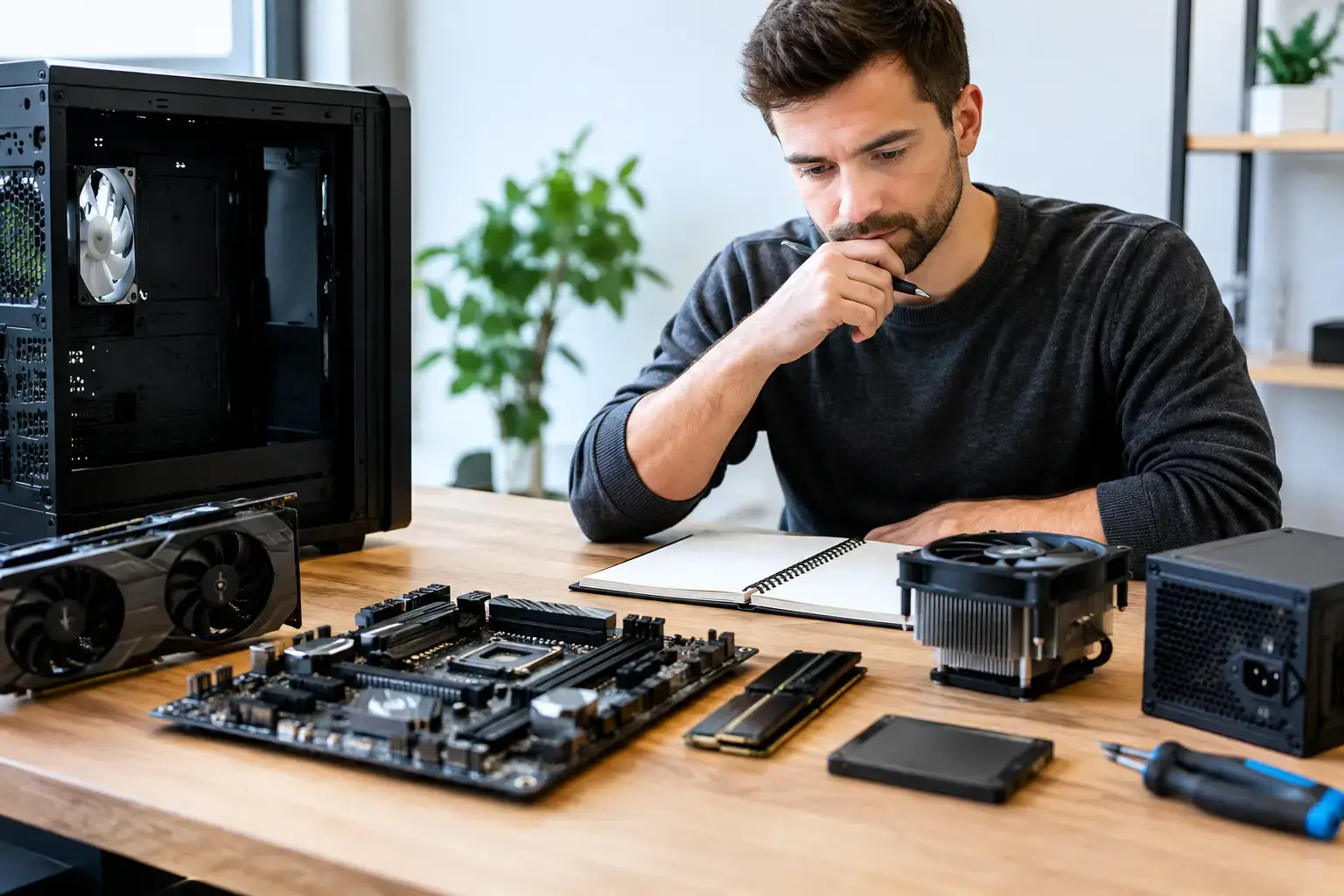
A new graphics card will not fix a PC that is running out of memory, and a faster CPU will not make a nearly full hard drive feel responsive. A good PC upgrade planning guide starts with the bottleneck you can actually feel, then builds a budget around the parts that will make the biggest difference in your games, projects, or workday.
The goal is not to replace components just because a newer model exists. It is to spend where performance is being held back, keep the parts that are still doing their job, and avoid buying hardware that creates a new compatibility problem.
Start With What Your PC Needs to Do
Before looking at model numbers, define the result you want. A player moving from 1080p to 1440p high-refresh gaming has different priorities from someone editing 4K video, running large spreadsheets, or trying to make an older family PC feel quick again.
For gaming, consider the games you play, your monitor resolution, and the frame rate you expect. Competitive titles such as Fortnite, Valorant, and Call of Duty often reward a strong CPU and fast memory when chasing high-FPS esports performance. Demanding single-player games at 1440p or 4K place much more weight on the graphics card and available VRAM.
For creators and professionals, identify the software that takes the longest. Video editing, 3D rendering, music production, CAD work, and heavy multitasking can benefit from multi-core power, larger memory capacity, fast NVMe storage, or a GPU that accelerates specific workloads. A system used mainly for web browsing, office apps, and video calls may need only an SSD and RAM upgrade to feel dramatically newer.
Write down the issue in plain language: games stutter, export times are too long, storage is constantly full, or the PC takes several minutes to become usable after startup. That is more useful than deciding you need a new processor before checking the rest of the system.
Find the Real Bottleneck Before You Buy
Use Task Manager, in-game performance overlays, and the storage information built into your operating system to see what happens during the task that feels slow. Check CPU usage, GPU usage, memory use, storage activity, and temperatures while gaming or working.
If your GPU is close to 95 to 100 percent usage while your CPU has room to spare, a graphics card upgrade is usually the clearest path to higher settings or frame rates. If the CPU is maxed out while the GPU is underused, particularly at 1080p, the processor may be limiting performance. This is common in CPU-heavy multiplayer games, simulation titles, and systems paired with a powerful GPU on an older platform.
Memory can be less obvious. When a PC has 8GB of RAM, modern games, browser tabs, background apps, and Windows can quickly force data onto the storage drive. That creates hitching, long load times, and a system that feels slow when switching tasks. Moving to 16GB is a practical baseline for many gaming PCs, while 32GB is a strong target for demanding games, content creation, and serious multitasking.
Storage is another frequent culprit. A mechanical hard drive can still be useful for large archives, but it should not be the primary drive for an operating system and current games. Replacing it with an SSD, ideally an NVMe SSD where the motherboard supports it, improves startup speed, program loading, and general responsiveness. Keep some free capacity available as well. A packed drive cannot perform at its best.
Do Not Ignore Heat and Power
Performance drops are not always caused by outdated hardware. Dust buildup, a weak cooler, dried thermal paste, poor case airflow, or aggressive temperature limits can cause a CPU or GPU to throttle. Check temperatures before replacing a component that may simply need maintenance.
Your power supply also deserves attention before a major graphics card upgrade. Look beyond total wattage. A quality unit with the right PCIe power connectors and enough headroom is safer than an older, low-quality supply with a high number printed on the label. New GPUs can have sharp power spikes, so this is not a component to guess on.
Plan the Upgrade Around Your Platform
A PC is a connected system. The motherboard determines which CPU socket, memory generation, storage connections, and expansion options are available. That is why a low-cost processor upgrade can sometimes become a CPU, motherboard, and RAM upgrade at the same time.
For example, an older DDR4 platform may still have plenty of life if a compatible processor upgrade delivers the performance you need. But if you are moving to a newer CPU generation that requires DDR5 and a new socket, calculate the full platform cost before ordering anything. The newer route may offer a better long-term foundation, but it is not automatically the best value for every budget.
Check these compatibility points before committing:
- Your motherboard CPU socket and whether a BIOS update is required for the processor you want
- RAM type, supported speeds, available slots, and whether your current modules should be matched or replaced
- Graphics card length, thickness, and clearance inside the case
- Power supply wattage, quality, connectors, and age
- Available M.2 slots, SATA ports, PCIe slots, and cooling mounts
A BIOS update needs careful planning. Some boards can update without an installed CPU, while others need a supported processor already fitted. If that sounds like an unnecessary risk, expert assembly and compatibility-checked configuration are worth considering.
Spend the Budget in the Right Order
There is no universal upgrade order, but there are sensible patterns. For a gaming PC with an adequate processor and 16GB or more of RAM, the graphics card normally delivers the largest visual and frame-rate gain. Pair it with the monitor you actually use. Buying a high-end GPU for a 60Hz 1080p display may be excessive, while a strong 1440p or 4K monitor can reveal the benefit immediately.
For a system that feels slow in everything, prioritize an SSD, enough RAM, and a clean software setup before pursuing a premium CPU. Those upgrades improve every click rather than only one benchmark score.
For editing and workstation use, balance matters more than a single flagship part. A fast processor is valuable, but not if 16GB of RAM forces constant swapping during large projects. A powerful GPU helps certain applications, but it cannot compensate for slow project storage or too few CPU cores in a rendering-heavy workflow. Check the recommended hardware guidance for the exact programs you use, not just general creator-PC advice.
Set aside part of the budget for the supporting pieces: a reliable power supply, CPU cooler, additional case fans, storage migration, or a Windows reinstall if needed. These are not glamorous purchases, but they protect stability and make the new hardware perform as intended.
Choose Parts for the Next Few Years, Not Forever
Future-proofing has limits. Buying far more performance than you need today can mean paying for features that never become relevant. A better approach is to choose a platform with a reasonable upgrade path and components that suit your next likely step.
If you expect to move from 1080p to 1440p gaming, select a GPU with enough performance and VRAM for that transition. If your creative work is growing, choose a motherboard with spare M.2 slots and memory capacity beyond your current requirement. If you plan to add drives, make sure the case and power supply can support them cleanly.
Avoid false savings on parts that are difficult to replace later. A dependable power supply, a well-ventilated case, and a capable motherboard can stay in a build through multiple CPU or GPU upgrades. Storage, RAM, and graphics cards are generally easier to expand or swap as needs change.
Decide Between a Partial Upgrade and a New Build
A partial upgrade makes sense when the foundation is sound. A recent motherboard, healthy power supply, capable case, and compatible CPU path can make an upgrade highly cost-effective. It also reduces waste and lets you direct more of the budget toward the component that matters most.
A new build becomes more attractive when several core components are already limiting the system. If you need a new motherboard, CPU, RAM, power supply, storage, and GPU, reusing an old case may be the only meaningful carryover. At that point, a fully upgradeable custom system can offer cleaner cable management, current connectivity, tested component compatibility, and fewer compromises.
PCZone builds are configured around this kind of real-world balance, from accessible gaming systems to multi-core workstations. The advantage of professional assembly is not just fitting parts together. It is having BIOS settings, memory profiles, cooling, and stability testing handled before the system reaches your desk.
Build a Simple Upgrade Checklist
Before placing an order, confirm your target performance, total budget, monitor resolution, current specifications, and physical case space. Back up important files, especially before changing a boot drive or reinstalling Windows. If you are upgrading storage, decide whether you will clone the existing drive or begin with a fresh installation.
Once the hardware is installed, update chipset and graphics drivers, enable the correct memory profile in BIOS, and test the PC under load. Watch temperatures, confirm storage speeds and capacity, then play the games or run the projects that motivated the upgrade in the first place.
The best upgrade is the one you notice every day: smoother gameplay, faster exports, quieter operation, and a PC that still has room to grow when your next project or favorite game asks for more.

