


Blog
How to Choose an Office PC for Multitasking

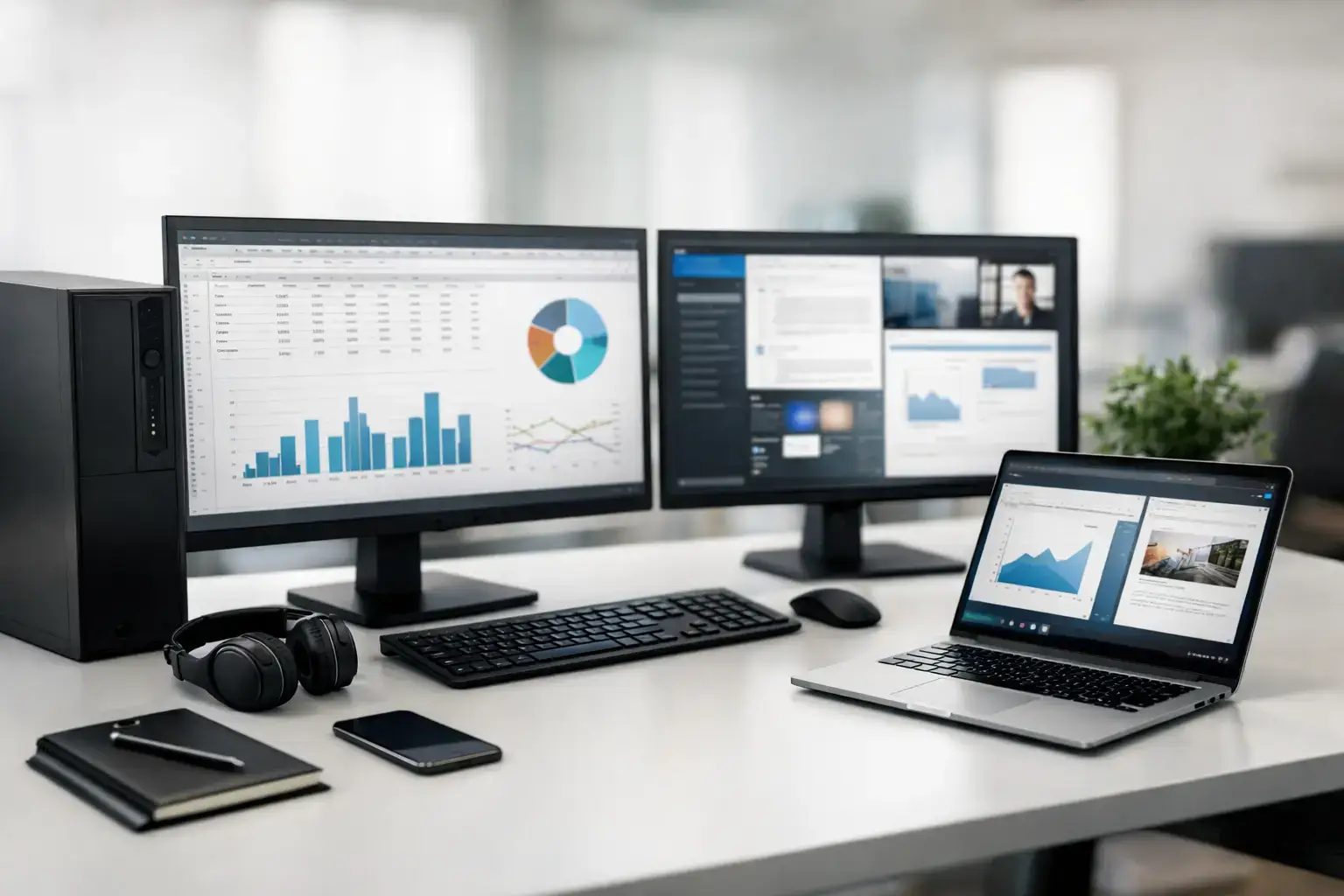
A slow computer rarely fails in one dramatic moment. It loses time in the gaps: a spreadsheet freezes while a video call is running, browser tabs reload, an email attachment takes too long to open, and the whole desktop feels behind your pace. The right office PC for multitasking keeps those small delays from becoming part of the workday.
For most professionals, the answer is not simply buying the most expensive processor available. A good multitasking system needs the right balance of CPU cores, memory, fast storage, graphics support, and room to grow. The best configuration depends on whether your day means emails and accounting software, large Excel files, remote meetings, design apps, or all of them at once.
What Makes an Office PC for Multitasking Fast?
Multitasking performance is about how well a desktop handles several active workloads without making any one of them feel slow. Modern processors use multiple cores and threads to divide work efficiently. More cores help when you are rendering a presentation, syncing cloud files, running a virtual meeting, and keeping dozens of browser tabs open at the same time.
However, core count is only one part of the picture. A fast CPU with too little RAM will still pause when applications compete for memory. Plenty of memory paired with an old hard drive will still feel sluggish when Windows, files, and programs need to load. A properly balanced office desktop prevents one weak component from holding back the rest of the system.
For typical business productivity, current Intel Core i5 and AMD Ryzen 5 processors are the sweet spot. They deliver strong everyday responsiveness along with enough multi-core power for busy workloads. Intel Core i7 and AMD Ryzen 7 systems make more sense for users who regularly work with demanding spreadsheets, large databases, multiple high-resolution displays, creative applications, or virtual machines.
Start With the Workload, Not the Spec Sheet
An entry-level office computer can be perfectly capable for a reception desk, point-of-sale setup, or a user working mainly in web apps and Microsoft 365. A Ryzen 3 or Intel Core i3 system with an SSD and sufficient memory is a major step up from an aging desktop. It is not the right choice, though, for someone who keeps 30 browser tabs, Teams, Excel, accounting software, and document management tools open all day.
For a general office employee, a Ryzen 5 or Core i5 processor, 16GB of RAM, and a 500GB or 1TB NVMe SSD is a dependable starting point. This tier handles the real-world mix of web browsing, video meetings, documents, email, cloud storage, and light image editing without feeling limited.
Power users need more headroom. If your workload includes Power BI, large Excel models, Adobe applications, code compilation, multiple remote desktops, or regular multitasking across two or three monitors, move to 32GB of RAM and consider a Ryzen 7 or Core i7 processor. The goal is not to chase specifications for their own sake. It is to ensure the PC remains responsive when your busiest day arrives.
Processor: Choose Modern Multi-Core Performance
Processor choice affects both immediate responsiveness and how long the desktop remains useful. A newer-generation Ryzen 5 or Core i5 is generally a better office investment than an older high-end processor, thanks to stronger per-core performance, improved efficiency, and newer platform support.
For straightforward productivity, six-core models offer excellent value. Eight-core Ryzen 7 and Core i7 configurations provide extra breathing room for heavier parallel workloads. If your work involves professional video editing, engineering software, large-scale data analysis, or several virtual machines, a higher-end Ryzen 9 or Core i9 workstation may be justified. For ordinary office work, those premium chips can be more power than you will use.
RAM: 16GB Is the Practical Floor
Memory is often the difference between a desktop that feels quick at 9 a.m. and one that slows down by lunchtime. When RAM runs short, the system shifts active data to storage, which creates the pauses users notice when switching between apps.
An 8GB configuration can still handle light duties, but it leaves little margin for a modern work routine. For a multitasking office PC, 16GB should be the practical minimum. It is the right fit for browser-heavy work, video calls, office software, and several simultaneous applications.
Choose 32GB when large spreadsheets, creative software, local databases, virtual machines, or many display-intensive programs are part of the job. It also makes sense for a system expected to stay in service for several years. Memory is one of the easiest upgrades in a fully upgradeable desktop, but starting with the right capacity avoids an unnecessary bottleneck from day one.
Storage: NVMe SSD Speed Matters Every Day
The storage drive has a direct impact on startup time, program loading, file searches, and general desktop responsiveness. An NVMe SSD is the clear choice for a modern business PC. It makes routine actions feel immediate compared with a traditional mechanical hard drive.
A 500GB SSD works for users whose files mostly live in cloud storage. A 1TB NVMe SSD is a more comfortable choice for local documents, shared project folders, photos, presentations, and archived email. Users handling media assets, CAD files, or large data sets may need 2TB or more, potentially with separate storage for active projects and long-term archives.
Do not confuse storage capacity with speed. A large hard drive can be useful for archive space, but the operating system and regularly used applications should live on the NVMe SSD.
Graphics and Displays: Match the Setup You Actually Use
Integrated graphics on many modern Intel Core and AMD Ryzen processors are more capable than older office PCs. For standard productivity, they can comfortably support one or two displays, video calls, browser-based work, and 4K media playback. This is often the sensible route for keeping cost and power use under control.
A dedicated graphics card becomes valuable when the workstation runs multiple high-resolution monitors, accelerated design software, 3D visualization, video editing, or technical applications that benefit from GPU power. It can also be the right choice for professionals who work during the day and want a system ready for creative projects or gaming after hours.
Before buying, count the displays you use and check their connections and resolutions. Two 1080p monitors place very different demands on a system than three 4K displays. A desktop should have the display outputs you need now, with a sensible path to expand later.
Reliability Is Part of Performance
A fast office PC that causes downtime is not a good business tool. Component quality, airflow, power delivery, and correct configuration all matter. Cheap prebuilt desktops can look attractive on paper while cutting corners on the power supply, motherboard, cooling, or upgrade options.
A compatibility-checked custom build uses branded components selected to work together properly. BIOS settings and memory profiles should be configured correctly, while cooling should be sufficient for sustained workloads rather than only short bursts. Those details help the system remain stable during long video calls, large file transfers, and demanding work sessions.
At PCZone, systems are assembled and tested with this practical focus in mind: the desktop should arrive ready to work, not become another project for your IT team or home office.
Buy for the Next Three Years
The lowest-priced configuration is not always the best value. Business workloads grow quietly. More browser-based tools appear, video meetings become standard, files get larger, and a second monitor often becomes essential. Choosing a desktop with an upgradeable motherboard, available memory slots, and room for additional SSD storage protects the investment.
A sensible office configuration for most users includes a current Ryzen 5 or Core i5 CPU, 16GB of RAM, and a 1TB NVMe SSD. For heavier multitasking, step up to Ryzen 7 or Core i7 performance and 32GB of RAM. Add dedicated graphics only when your monitors or professional software genuinely need it.
The best office PC is the one that stays out of your way. Build around the applications you rely on, leave room for tomorrow’s workload, and you will spend less time waiting for your computer to catch up.

