


Blog
How to Upgrade PC Memory Without Compatibility Mistakes

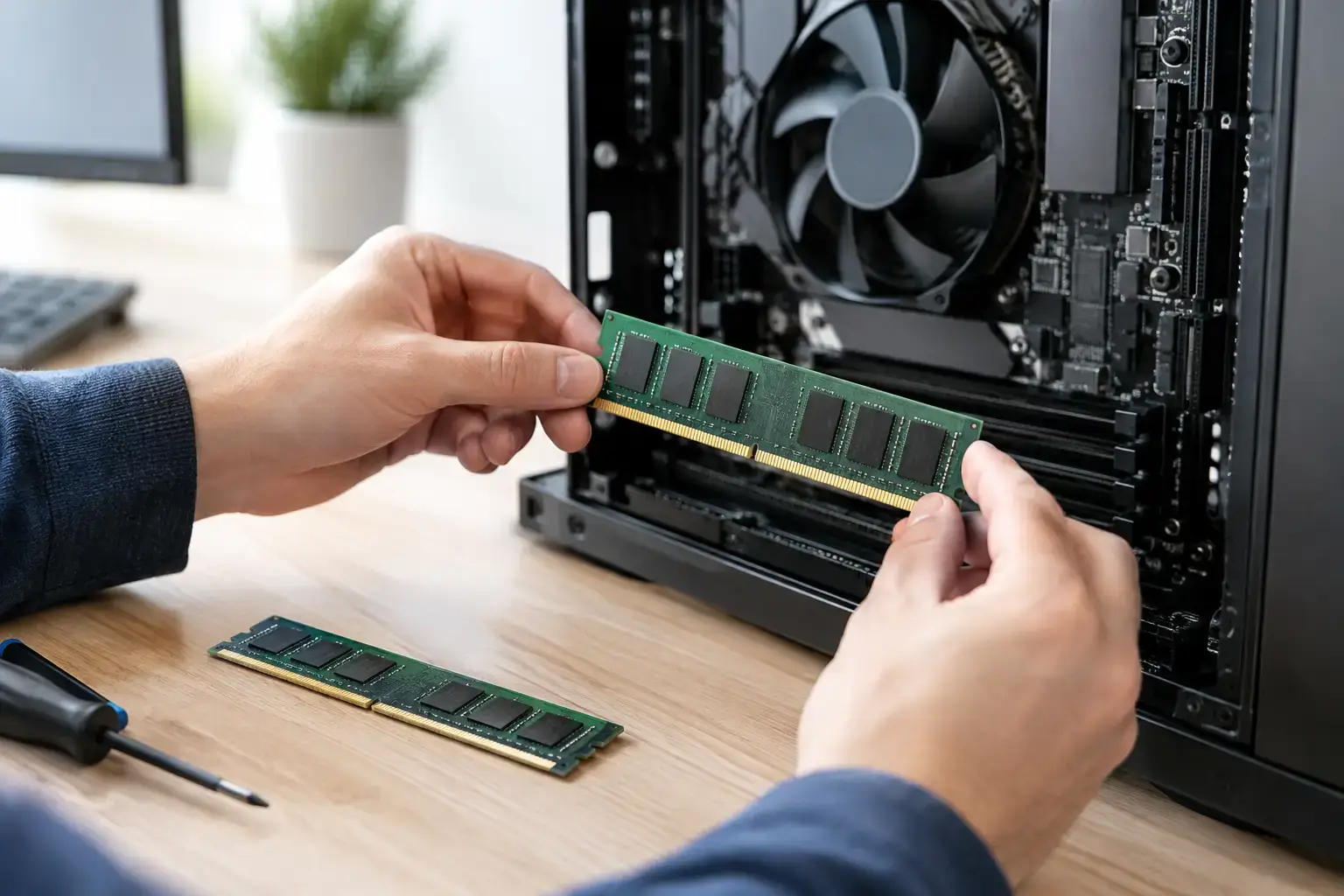
A game that stutters when Discord, a browser, and a recording app are open is not always asking for a new graphics card. Often, it is asking for more RAM. Knowing how to upgrade PC memory gives your system more room to handle modern games, creative apps, spreadsheets, and everyday multitasking without constantly relying on slower storage.
Memory upgrades are among the best-value improvements you can make, but RAM is not a one-size-fits-all purchase. The correct capacity, generation, speed, and module layout depend on your motherboard, processor, current configuration, and workload. Get those details right and you can improve responsiveness without paying for performance your PC cannot use.
When a PC Memory Upgrade Makes Sense
RAM is your PC’s short-term workspace. Your operating system, active programs, open browser tabs, game assets, and background tasks all compete for it. When available memory runs low, Windows moves some data to your SSD or hard drive. Even a fast NVMe SSD is far slower than RAM, which is why low memory can feel like random pauses, hitching, or sluggish switching between applications.
For a basic home or office PC, 8GB can still handle light browsing and documents, but it leaves little breathing room. Moving to 16GB is the sensible baseline for most users. It is enough for mainstream gaming, schoolwork, office applications, and normal multitasking.
A 32GB upgrade is a strong choice for modern gaming with multiple background apps, photo work, larger spreadsheets, coding environments, and regular content creation. Video editors working with high-resolution footage, 3D artists, music producers using large sample libraries, and workstation users may benefit from 64GB or more. More capacity does not automatically increase frame rates, though. If your current RAM is not filling up, a faster GPU or CPU may deliver a bigger gaming improvement.
Before buying anything, check Task Manager. Open the Performance tab, select Memory, then use your PC normally or launch the game or application that feels slow. If memory use regularly sits near 90% or higher, capacity is likely limiting the system.
How to Upgrade PC Memory: Check Compatibility First
The most common RAM upgrade mistake is buying memory that physically or electrically cannot work in the system. Start with the motherboard manual or its support page, then confirm the installed RAM in Task Manager, a system information utility, or the label on the memory module itself.
Desktop PCs use full-size DIMMs. Most laptops use smaller SO-DIMMs, although many thin laptops have soldered memory that cannot be upgraded. Never assume a laptop has accessible RAM simply because it has a removable bottom panel.
The memory generation matters just as much. DDR4 and DDR5 have different notch positions and are not interchangeable. A DDR5 kit will not fit a DDR4 motherboard, and forcing a module can damage the slot. Motherboards are built for one generation or the other.
You should also check your motherboard’s maximum memory capacity, number of RAM slots, and supported speeds. Current platforms commonly support 64GB, 128GB, or more, but older boards may have lower limits. Processor and motherboard specifications can also affect the maximum stable speed, particularly when all four slots are filled.
Match the Right RAM Configuration
For the best balance of speed and stability, use a matched kit rather than mixing random modules. A 2 x 16GB kit, for example, contains two tested 16GB sticks designed to work together. In a compatible dual-channel motherboard, placing them in the recommended paired slots lets the system access both memory channels for better bandwidth.
If your PC currently has one 8GB stick, adding an identical second 8GB stick can be an affordable route to 16GB and dual-channel operation. However, finding a truly identical match later is not always easy. The same model name can have different memory chips or revisions. If you are moving from 8GB to 32GB, replacing the old memory with a matched 2 x 16GB kit is usually cleaner and more reliable.
Mixing RAM can work, but it is a compromise. All modules generally run at the speed and timings of the slowest stick, and mismatched kits can cause boot failures or instability when memory profiles are enabled. For a PC used for work, competitive gaming, or client projects, stability is worth prioritizing.
Choose Capacity Before Chasing Speed
Capacity comes first. A fast 16GB kit will still struggle if your actual workload needs 24GB or 30GB. Once you have enough memory, speed and timings can help improve performance, especially on AMD Ryzen gaming systems and CPU-limited esports titles.
DDR4 systems often perform well with quality 3200 MT/s or 3600 MT/s kits, depending on the platform. DDR5 has a wider useful range, and the best option depends heavily on the CPU and motherboard. Higher numbers are not always better if they require unstable settings or cost far more for a small real-world gain.
Look for a kit with an Intel XMP profile or AMD EXPO profile where appropriate. These profiles store tested speed, voltage, and timing settings. Without enabling the profile in the BIOS, new RAM may run at a slower default speed. Prebuilt and custom systems should also have a BIOS that supports the selected kit properly.
Install the New RAM Safely
Installing desktop memory takes only a few minutes, but careful handling matters. Shut down the PC completely, switch off the power supply if it has a rear switch, and unplug the power cable. Press the front power button for a few seconds after unplugging to discharge remaining power.
Remove the side panel and locate the RAM slots beside the CPU cooler. Touch an unpainted metal part of the chassis before handling the modules to reduce static risk. Hold memory by its edges, not by the gold contacts or the small components.
If you are using two modules, consult the motherboard manual for the correct slots. On many four-slot boards, that is the second and fourth slots away from the CPU, often labeled A2 and B2. Open the retaining clips, line up the notch in the RAM with the key in the slot, then press down firmly and evenly until the clips lock into place. Do not force it if the notch does not align.
After reinstalling the panel and reconnecting power, start the PC. The first boot after a memory change may take longer than usual while the motherboard trains the memory. On some DDR5 platforms, this can take a few minutes. Give it time before assuming something is wrong.
Confirm Speed, Capacity, and Stability
Once Windows loads, check Task Manager to confirm the full capacity is detected. It should show the installed amount, number of slots used, and current speed. If the speed is lower than the kit’s advertised profile speed, enter the BIOS or UEFI and enable XMP or EXPO. Save the setting and reboot.
A successful boot is encouraging, but it is not a complete stability test. Use the PC as you normally would, run a demanding game, export a video, or use a memory-testing tool if you want deeper verification. Watch for blue screens, application crashes, corrupted files, or repeated restarts. These can point to an unstable memory profile, a poorly seated module, an outdated BIOS, or incompatible mixed RAM.
If the PC will not boot, power it down and reseat the memory first. Then try one module at a time in the motherboard’s recommended slot. If the system starts with one stick but not both, check slot placement and BIOS settings. Resetting the BIOS to default settings can also help, especially after moving from older memory to a faster kit.
Avoid Paying for the Wrong Upgrade
A RAM upgrade improves system responsiveness when memory is the bottleneck, but it cannot fix every performance complaint. Long game loading times may point to a hard drive or limited SSD space. Low FPS at high graphics settings is often a graphics card issue. Slow exports can depend more on CPU cores, GPU acceleration, storage, and the editing software itself.
That said, memory is one of the few upgrades that can make a PC feel better across many tasks at once. It reduces tab reloads, keeps background apps active, helps games avoid memory-related stutter, and gives demanding software room to work. Choose a compatible matched kit, install it in the correct slots, and enable its memory profile. Your PC should feel ready for the workload you actually give it, not just the one it handled when it was new.

