


Blog
Photo Editing PC Example: A Smart 2026 Build

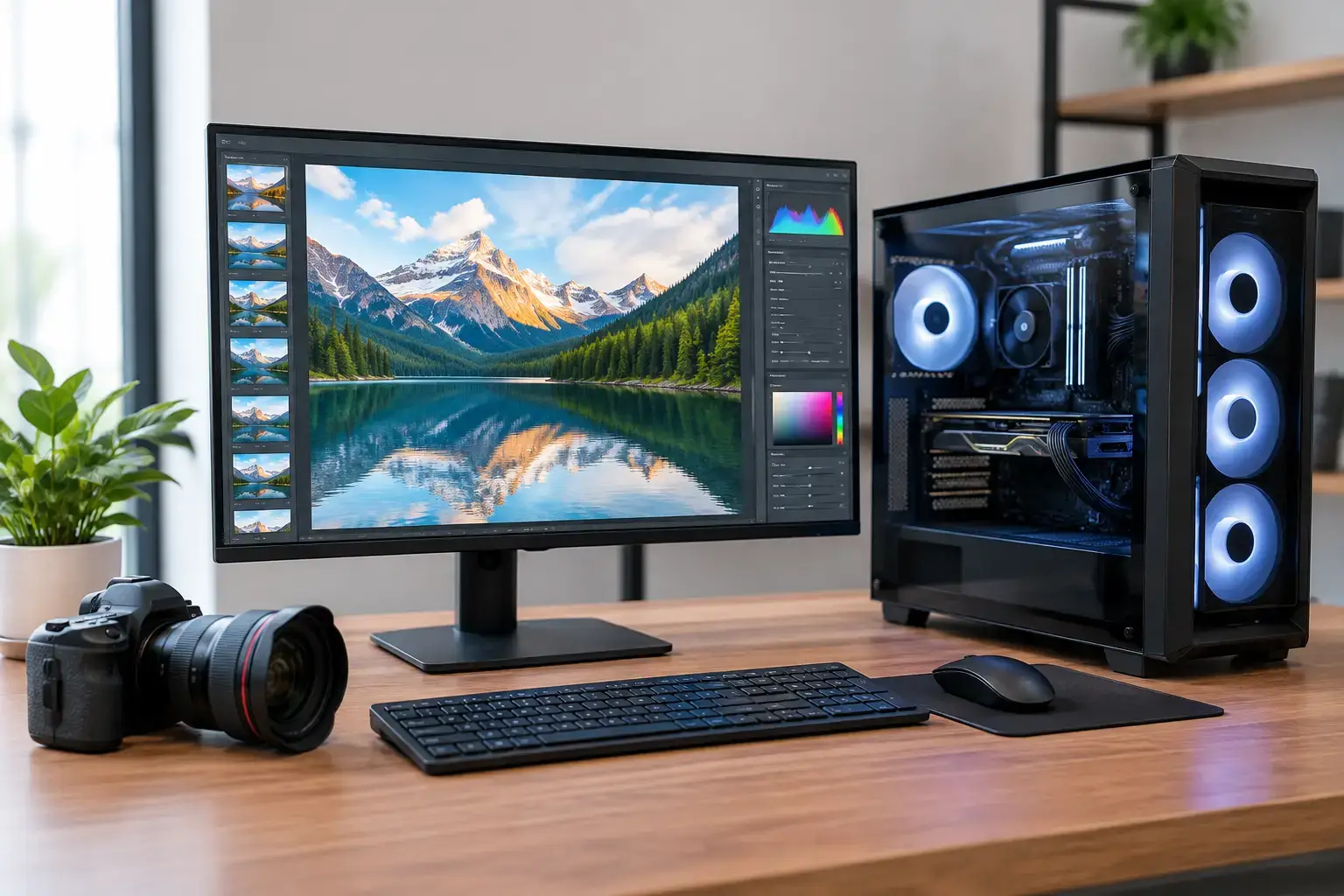
A good photo editing PC example should not just open Lightroom or Photoshop. It should make large RAW files feel manageable, keep previews moving quickly, and let you work through a full shoot without watching progress bars. For most photographers, the best system is not the one with the biggest graphics card. It is the one that balances processor power, memory, fast storage, display output, and long-term upgrade options.
Here is how to spec a desktop that delivers real editing performance, whether you photograph products, weddings, sports, portraits, or content for clients.
A Photo Editing PC Example That Makes Sense
A strong mid-range photo editing desktop could look like this:
- AMD Ryzen 7 7700 or Intel Core i7 processor
- NVIDIA GeForce RTX 4060 graphics card
- 32GB DDR5 memory
- 1TB NVMe SSD for Windows, apps, and active projects
- 2TB secondary SSD or hard drive for photo storage and archives
- A quality B650 or B760 motherboard with multiple M.2 storage slots
- 650W branded power supply and an airflow-focused case
- Windows 11 and a color-accurate monitor
This configuration is a practical sweet spot for serious hobbyists, freelancers, and small creative teams. It has enough multi-core power to import large batches of RAW images, build previews, run Photoshop layers, and multitask without becoming unresponsive. The RTX 4060 is not selected for gaming alone. Adobe applications and other editing tools can use GPU acceleration for smoother zooming, masking, AI-powered selections, image processing, and certain export tasks.
The key is balance. Pairing a top-tier processor with only 16GB of memory or a slow hard drive creates a bottleneck you will notice every day. Likewise, buying a high-end graphics card while compromising on your display is a poor fit for color-critical work.
Why the Processor Matters More Than You Think
Photo editing uses the processor in different ways depending on the task. Opening files, exporting images, generating previews, applying adjustments across a batch, and running several applications at once all benefit from strong CPU performance. A modern Ryzen 7 or Core i7 chip is an excellent starting point for most photographers because it combines high clock speeds with enough cores for demanding workloads.
A Ryzen 5 or Intel Core i5 system can still be a good fit for lighter editing. If you mainly edit JPEGs, work with smaller catalogs, or create occasional social content, it can offer very good value. Choose a current-generation model and prioritize the rest of the system properly, especially memory and SSD capacity.
Step up to a Ryzen 9 or Core i9 if photography is your business and time directly affects your income. High-volume event photographers, studio teams processing thousands of files, and creators combining photo work with 4K video will benefit from the additional multi-core power. It will not make every single brush stroke twice as fast, but it can significantly reduce waiting during exports, preview generation, and heavy multitasking.
Start With 32GB of Memory
Memory is one of the easiest places to avoid frustration. Modern editing software, browser tabs, cloud sync tools, Photoshop, Lightroom, and a large RAW catalog can fill 16GB faster than many buyers expect. When that happens, the PC relies more heavily on storage as temporary memory, which slows the whole experience.
For a new photo editing desktop, 32GB is the sensible baseline. It gives you breathing room for large files, layered PSD documents, panoramic stitches, focus stacks, and several programs open at once. It is also a much better fit for photographers who expect to keep a system for several years.
Choose 64GB if your workflow involves very high-resolution camera files, extensive compositing, huge catalogs, or regular video editing. This is especially worthwhile for professionals working with medium-format images, scanning large negatives, or building detailed client presentations in parallel with editing. More memory does not replace a fast processor, but it prevents memory capacity from becoming the limiting factor.
Storage Speed Changes the Feel of Editing
Storage is where a well-configured workstation feels instantly different from a basic desktop. A fast NVMe SSD should hold the operating system, editing applications, Lightroom catalog, Photoshop scratch disk, and your current projects. These are the files your PC accesses constantly, so speed matters.
A 1TB NVMe SSD is a sensible starting point. Photographers who shoot frequently may prefer 2TB from day one, particularly if they keep active client work locally. Running out of space on the main drive is more than an inconvenience. It can reduce SSD performance and leave too little room for temporary files created during editing and export.
For completed work and long-term archives, add a second drive. A larger SATA SSD offers quiet operation and fast access, while a hard drive provides more capacity for the dollar. The right choice depends on how quickly you need archived images to load. Either way, storage is not a backup plan by itself. Keep separate backups of finished work, ideally in more than one location.
Do You Need a Powerful Graphics Card?
A dedicated graphics card is useful for modern photo editing, but the sensible level depends on your software and screen setup. Lightroom Classic, Photoshop, Capture One, and AI-based tools can use the GPU to accelerate selected tasks. A capable NVIDIA RTX card also gives you a stronger platform if you add video work, motion graphics, or gaming later.
For most photo-focused users, an RTX 4060-class GPU is a balanced choice. It has enough VRAM and processing capability for accelerated editing without consuming a disproportionate share of the budget. An RTX 4070-class card may be justified for 4K multi-monitor setups, heavier AI features, hybrid photo and video workflows, or creators who also want high-FPS esports performance after work.
Integrated graphics can work for basic photo editing, particularly in a budget Core i5 or Ryzen 5 build. However, a dedicated GPU is the better long-term option when budget allows. It provides more consistent performance as software becomes more GPU-aware and makes a workstation more versatile.
Your Monitor Is Part of the Workstation
No photo editing PC example is complete without discussing the display. Your desktop can process files at high speed, but you cannot make confident editing decisions if the monitor shifts colors, crushes shadows, or displays inconsistent brightness.
Look for an IPS monitor with good sRGB coverage at a minimum. If you deliver print work, commercial photography, or files intended for Adobe RGB workflows, wider color-gamut support can be worth the investment. A 27-inch 1440p screen is a popular balance of workspace, sharpness, and price. A 4K display gives more detail and room for panels, but it also benefits from a stronger GPU and may require more scaling depending on your preferences.
Calibration matters too. Even a quality panel should be calibrated if color accuracy affects client approvals, print matching, or product photography. The monitor is not an accessory in this setup. It is the final reference point for every decision you make.
Build for Expansion, Not Just Today’s Files
Camera resolutions rise, catalogs grow, and editing software adds more AI-assisted features every year. A fixed, mass-market desktop may look attractive at checkout, but limited memory slots, a weak power supply, or no spare M.2 slots can make future upgrades unnecessarily difficult.
A custom-built system with a quality motherboard, branded power supply, and room for additional SSDs gives you options. You can add more storage when a busy season fills the first drive, increase memory as files become larger, or upgrade the graphics card when your workload changes. That is why compatibility-checked, fully upgradeable desktops are often the better value over several years.
PCZone builds can be configured around the way you actually edit, rather than forcing a photographer into a one-size-fits-all parts list. That matters when one buyer needs a cost-effective Lightroom system and another needs multi-core power for full-time commercial production.
Choose the System Around Your Real Workflow
Do not overbuy a graphics card because it looks impressive on a spec sheet, and do not underspend on memory or storage because those parts are less exciting. Put the budget where it improves your day-to-day workflow: a current-generation processor, 32GB or more of memory, a fast NVMe SSD, a capable GPU, and a monitor you can trust.
The right photo editing desktop should disappear into the background while you work. When imports are quick, adjustments respond immediately, and your system has room for the next camera, project, or client deadline, you can spend more time improving the image instead of managing the PC.

