


Blog
Best PC for Video Editing for Faster Projects

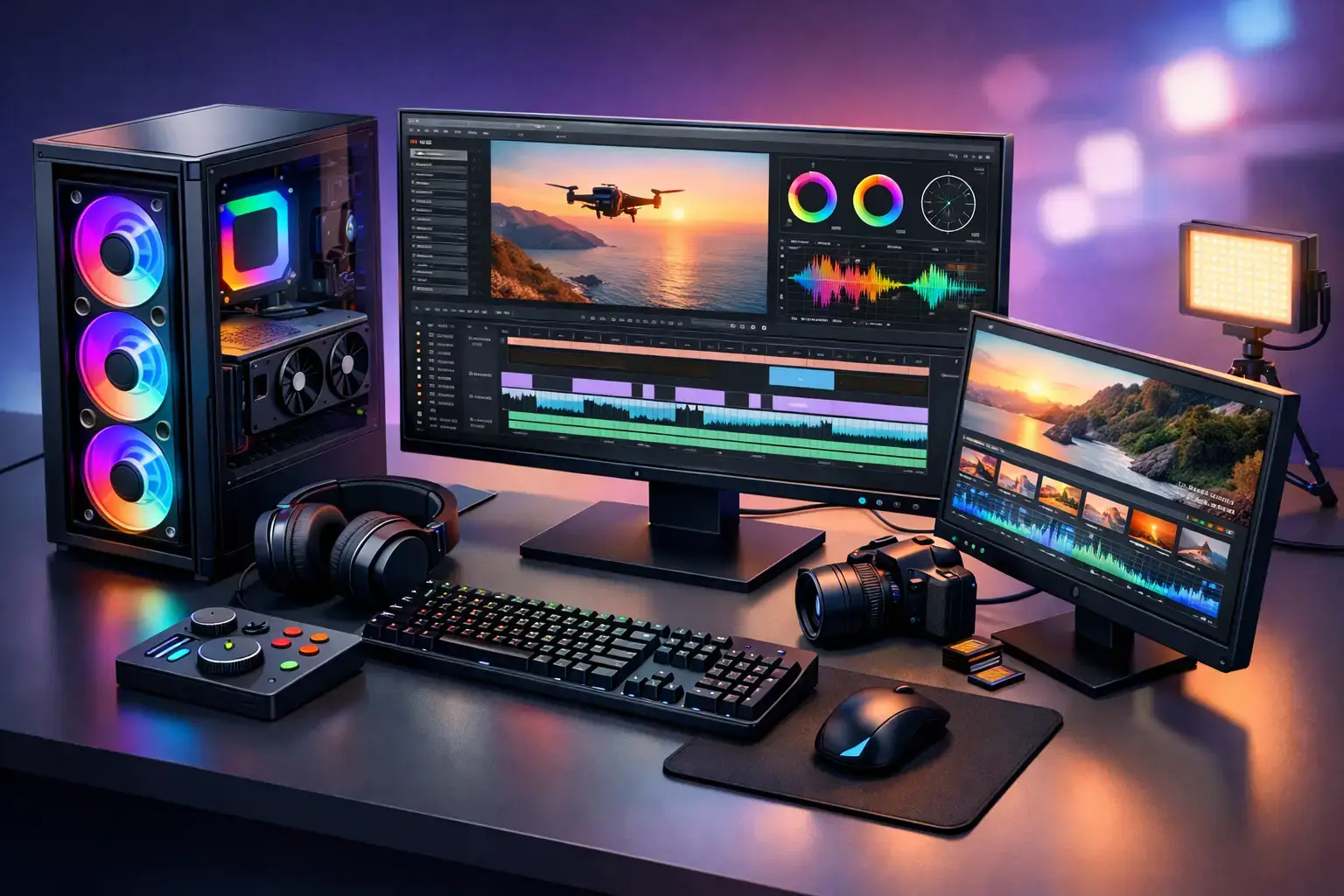
A lagging timeline costs more than patience. It breaks concentration, slows revisions, and turns a quick client change into an afternoon of proxy files and progress bars. The best pc for video editing is not necessarily the most expensive desktop available. It is the system that matches your footage, editing software, effects workload, and delivery deadlines with the right balance of CPU power, graphics performance, memory, and fast storage.
For short 1080p projects, that balance can be surprisingly attainable. For multi-camera 4K, RAW footage, motion graphics, and color grading, it needs to be planned properly from the start. Here is what actually matters when choosing a desktop that keeps your creative work moving.
Start with your footage, not a spec sheet
Video editing workloads are not all alike. A creator cutting talking-head videos in 1080p with basic titles has very different requirements from a wedding editor managing hours of 4K H.264 footage, or a production team grading 6K RAW in DaVinci Resolve.
The codec matters as much as the resolution. Highly compressed H.264 and H.265 footage can be demanding to decode, even when the resolution is only 4K. ProRes and DNxHR files consume more storage but are often easier for a workstation to play back. Add noise reduction, multicam sequences, motion tracking, AI effects, or layered After Effects compositions, and hardware demands rise quickly.
Before choosing components, consider the projects you edit most often. Think about your usual resolution, camera format, number of tracks, software, and whether you need to export while working on other tasks. That gives you a much clearer target than buying around one headline specification.
The best PC for video editing needs a strong CPU
The processor remains the foundation of an editing workstation. It handles timeline playback, decoding, export tasks, background processes, and many effects. More cores help with rendering and exporting, while strong per-core performance keeps the system responsive as you edit.
For regular 1080p editing and lighter 4K work, a modern Intel Core i5 or AMD Ryzen 5 processor is a sensible starting point. These systems can handle YouTube edits, social media content, product videos, and straightforward Premiere Pro projects without pushing the budget into workstation territory.
Move to an Intel Core i7, AMD Ryzen 7, or higher when 4K is your everyday format. The added multi-core power pays off with longer projects, heavier transitions, more demanding codecs, and faster final exports. Editors who work with multicam footage, substantial color correction, or a busy mix of Premiere Pro, Photoshop, and After Effects should prioritize this tier.
For professional production, a Core i9 or Ryzen 9 build offers the headroom that deadlines demand. These processors make the most sense when rendering is a regular part of the day, not an occasional task. They are also a strong choice for editors who want a fully upgradeable system that remains capable as projects become more ambitious.
Intel systems can be particularly attractive for editors working with H.264 and H.265 footage because supported Intel processors include Quick Sync hardware acceleration. That can improve playback and export performance in applications that use it. AMD Ryzen systems, meanwhile, offer excellent multi-core performance and can be a strong value choice for render-heavy workloads. The right answer depends on your software and footage, not brand loyalty.
Choose a graphics card for effects, grading, and acceleration
A dedicated graphics card is no longer optional for serious video editing. Modern applications use the GPU to accelerate color correction, effects, scaling, AI tools, playback, and exporting. DaVinci Resolve is especially GPU-focused, while Premiere Pro also benefits heavily from a capable NVIDIA RTX graphics card.
For 1080p editing, an RTX 5060-class GPU provides a strong entry point. It gives creators useful hardware acceleration, modern encoding support, and enough performance for lighter 4K timelines. It is a smart fit for editors who also game after hours or create short-form content regularly.
For more demanding 4K work, an RTX 5070-class card or better offers a noticeable step up. The added graphics horsepower helps when projects include Lumetri color work, stabilized footage, effects layers, high-resolution assets, and GPU-accelerated exports. NVIDIA cards are widely used in creative workflows because CUDA acceleration is supported across many professional applications.
VRAM matters too. Graphics memory stores textures, frames, and effects data while you work. A card with 8GB of VRAM can be enough for entry-level and mainstream editing, but 12GB or more gives better breathing room for complex 4K projects, Resolve color grades, and larger creative workloads. Buying more GPU than your workflow needs is not always efficient, but underbuying can quickly limit an otherwise powerful workstation.
RAM is where smooth multitasking begins
Memory capacity determines how comfortably your PC handles active projects, previews, browser tabs, Adobe apps, music libraries, and background tools at the same time. Video editing can consume RAM quickly, especially once you introduce high-resolution media and dynamic-link workflows.
16GB is the minimum for basic 1080p editing, but it is best treated as a starting point rather than a long-term target. A 32GB configuration is the practical sweet spot for most editors. It gives Premiere Pro, Resolve, and similar applications room to work while keeping the rest of the desktop responsive.
For heavy 4K, multicam work, complex motion graphics, or large After Effects compositions, 64GB is a better investment. It reduces the chance that memory becomes the bottleneck just as a project becomes demanding. Professional users working with 6K, 8K, RAW media, or several applications at once may benefit from 96GB or 128GB, depending on the workflow.
Memory should also be correctly configured. A dual-channel kit, installed as a matched pair and set to its proper memory profile, helps the processor deliver the performance you paid for. Compatibility-checked components and correct BIOS configuration matter here. They are not glamorous specifications, but they make a real difference to stability.
Fast storage keeps the timeline moving
Storage affects far more than how many projects you can save. A fast NVMe SSD improves boot times, application launches, cache performance, media imports, and the responsiveness of large project files. Editing directly from a slow hard drive can create unnecessary playback problems, even with a powerful CPU and GPU.
A well-planned editing PC usually separates storage jobs. Use a fast NVMe SSD for Windows, applications, and active project files. A second NVMe SSD is ideal for media cache, scratch files, previews, and current footage. Larger SSDs or high-capacity hard drives can then store completed projects and backups.
Capacity disappears quickly with 4K footage. A 1TB primary SSD is workable for lighter use, but 2TB gives most creators a more comfortable foundation. If your projects involve high-bitrate formats, multi-camera shoots, or long-form edits, plan storage before the first card is imported. External storage can expand capacity, but your active footage benefits most from fast internal drives.
Three performance tiers that make sense
A good editing desktop should be built around the level of work you do today while leaving a sensible upgrade path for tomorrow.
Entry editing and 1080p production
A modern Ryzen 5 or Core i5 processor, RTX 5060-class graphics, 16GB to 32GB of RAM, and a 1TB NVMe SSD is a capable platform for 1080p projects and lighter 4K editing. This tier suits creators producing YouTube videos, reels, training content, podcasts, and product demonstrations. Prioritize 32GB RAM if the budget allows, as it offers a more comfortable editing experience than spending the same money on unnecessary cosmetic extras.
Serious 4K editing workstation
For regular 4K work, look for a Ryzen 7 or Core i7 processor, RTX 5070-class graphics, 32GB of RAM, and at least 2TB of fast NVMe storage. This is the performance tier where editing feels substantially less compromised. It is well suited to freelance editors, event videographers, agencies, and creators who use effects, color grading, and longer timelines.
High-end production and motion graphics
A Ryzen 9 or Core i9 processor, RTX 5080-class graphics or above, 64GB of RAM, and multiple NVMe drives create a serious production machine. This configuration is built for demanding 4K and 6K workflows, RAW footage, advanced Resolve grades, motion design, and frequent rendering. It is also the right direction for users whose time has a measurable value: faster exports can mean more revisions completed, more projects delivered, and fewer late nights waiting on a render.
Do not overlook the parts around the performance
A workstation is only as dependable as the components supporting its headline specifications. A quality motherboard provides expansion for additional SSDs, more memory, faster networking, and future upgrades. A properly sized branded power supply protects the system under sustained rendering loads. Effective air cooling or liquid cooling helps the CPU maintain performance during long exports instead of reducing speed because temperatures climb.
Windows should be installed, drivers configured, and the system tested before it reaches your desk. A ready-to-use build removes the uncertainty of fitting parts, updating BIOS settings, troubleshooting memory profiles, and finding out a component combination is unstable in the middle of a project. PCZone focuses on expert-built, compatibility-checked desktops because reliability is part of performance.
Buy for the edits you want to make next
The best workstation is not the one with the longest component list. It is the one that lets you press play, make the change, render the revision, and get back to creating without the hardware becoming the story. Choose a balanced configuration, leave room for more RAM and storage, and put your budget where your workflow will feel it every day.

